
Set up a Sinorrah Exchange email in the iOS Mail app


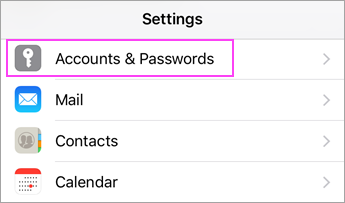
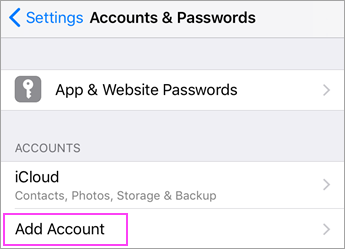
Go to your iPhone or iPad's Settings > scroll down and tap Accounts & Passwords > Add Account.
Note: If you're on iOS 10 or above, go to Mail > Accounts >Add Account.

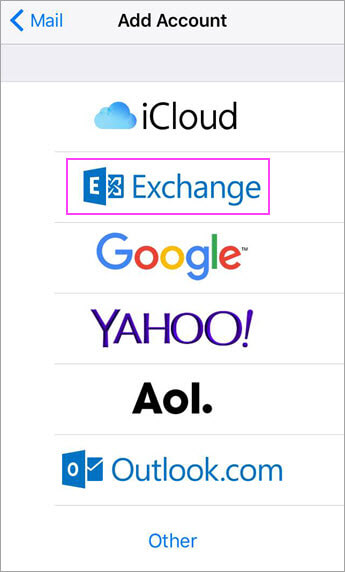
Select Exchange.

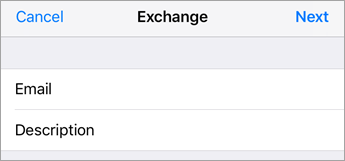
Enter your email into the email box. Tap Next.
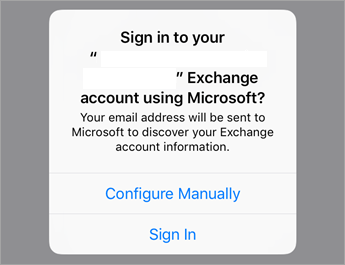
Tap Configure Manually.

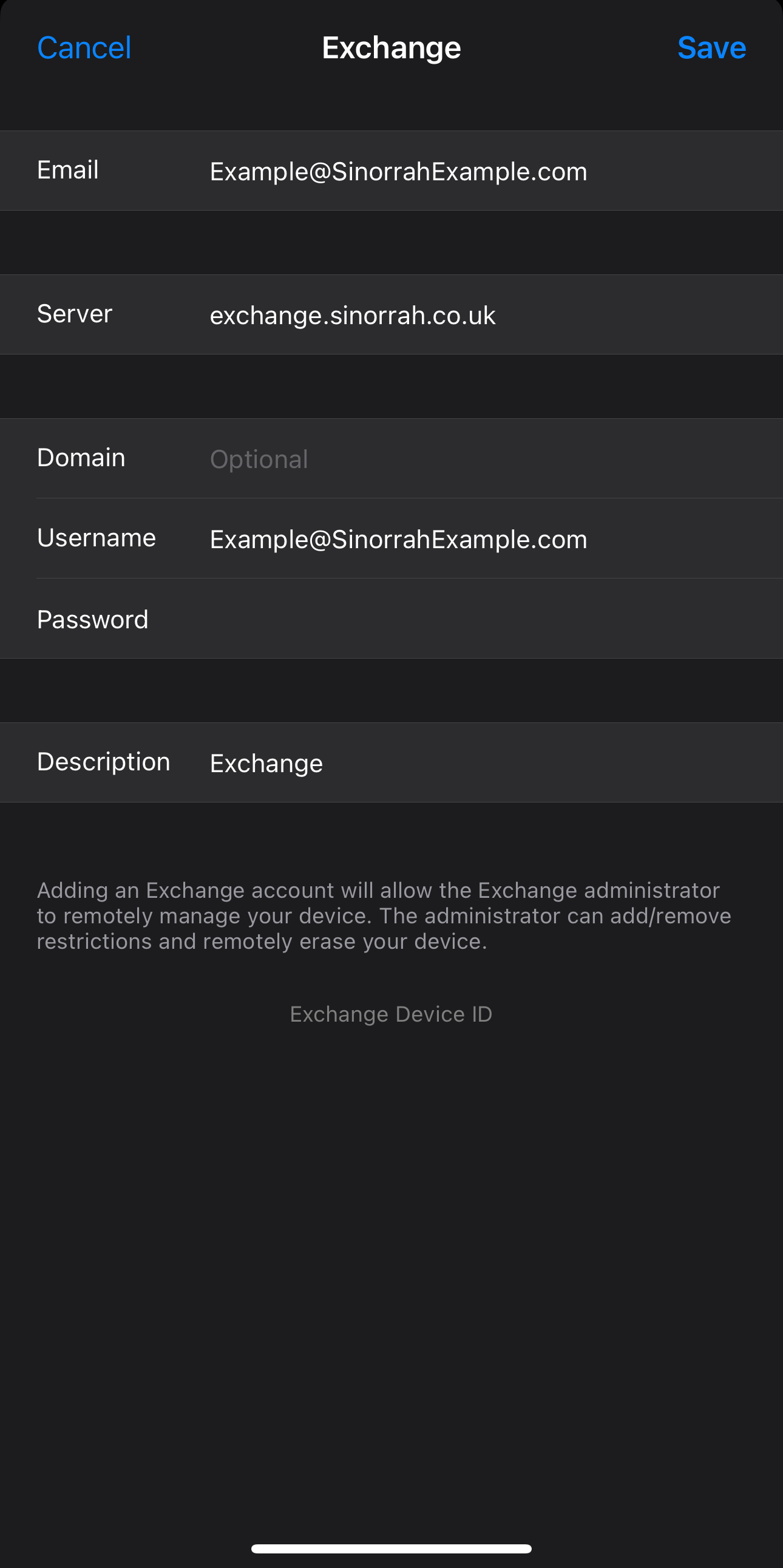
Email: Your Email
Server: exchange.sinorrah.co.uk
Domain: Leave Blank
Username: Your Email
Password: Your Password
Press Save

Choose the services you want to sync with your iOS device and tap Save. You're done!
