
How to use Screenbeam
Disclaimer: Screenbeam on Mac OS only allows using the microphone and screen, the camera is not functional.
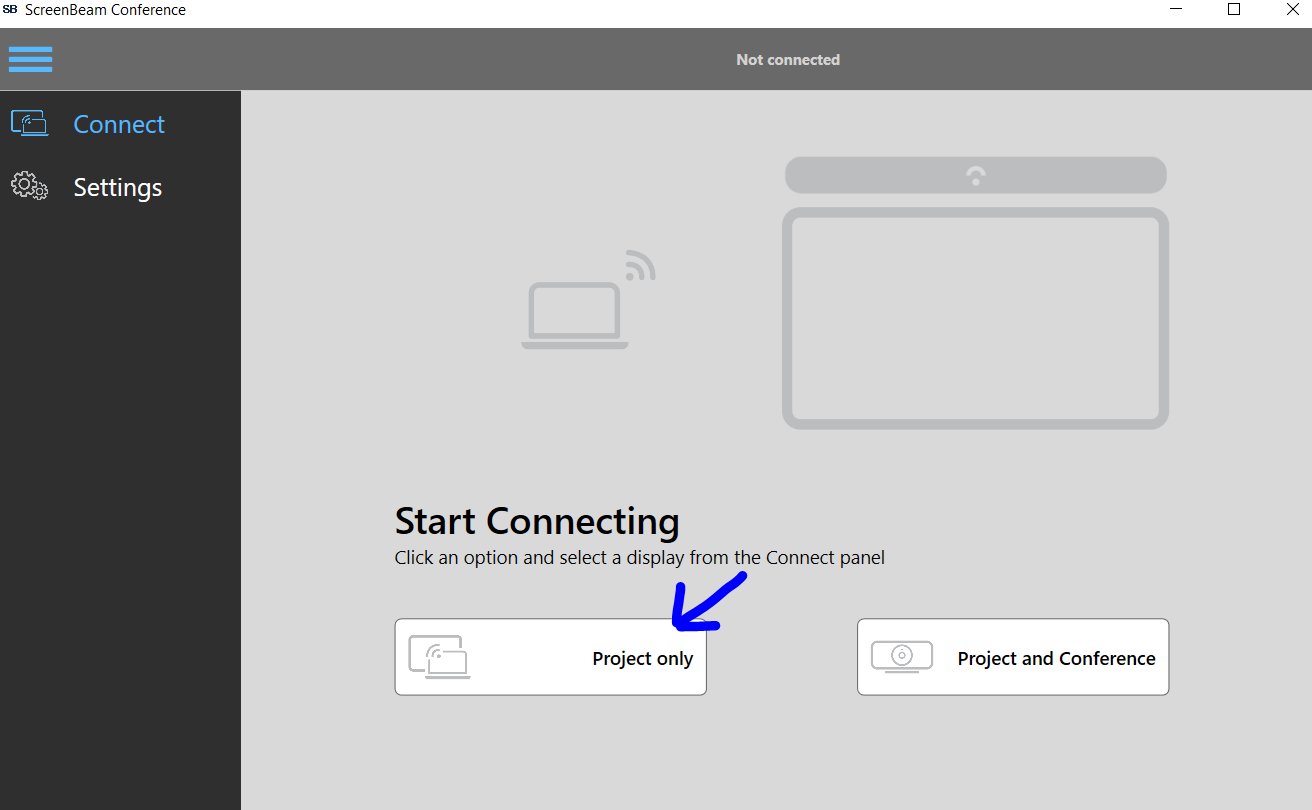
1. Open Screenbeam from the startmenustart menu
2. Select Project Only
3. Select Conference Screen
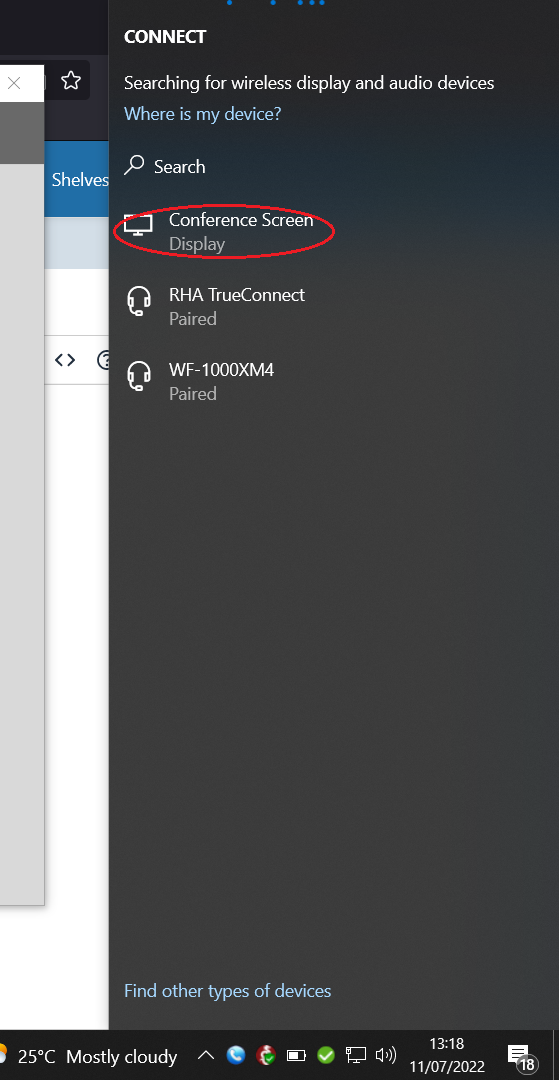
4. Fill in the code displayed on the presenter screen.
5. You are now connected in Duplicate Screen mode.
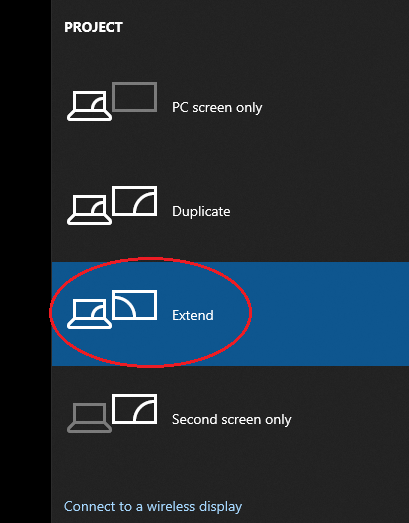
6. To set it to "Extend" (EG actacts like 2 differntdifferent screens) you need to press the Windows Key + The Letter P
7. A pop pop-up should appear, select "Extend", you should now have them as 2 displays, allowing you to drag windows to the presenter screen.
8. To use the microphone/camera, you simply need to select them to be used in your application of choice EG Teams
You can do this via the team settings.
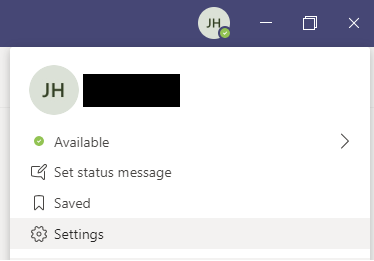
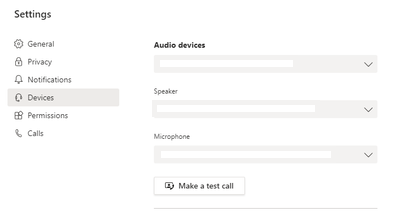
In the devices section, select the remote device for audio, speaker, and camera.
NOTE: IfDisable the background blur if you are using the camera with teams, disable the background blur.teams.