
Microsoft Edge - Sign out of Microsoft account
How to Sign Out of Microsoft Edge
Once you set up a Microsoft Edge profile, you'll find that you're automatically logged in every time you open the browser. That's so that syncing functionality can be enabled, giving you more personalized features when browsing. However, if you want some privacy while you browse, it's also simple to log out of the Edge browser.
-
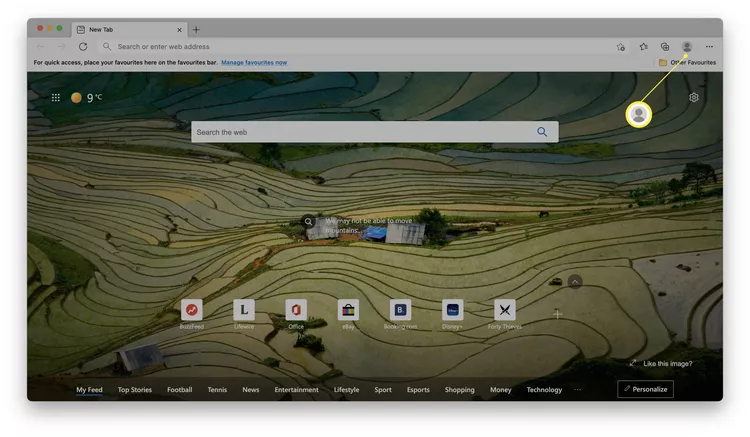
Open Microsoft Edge.
-
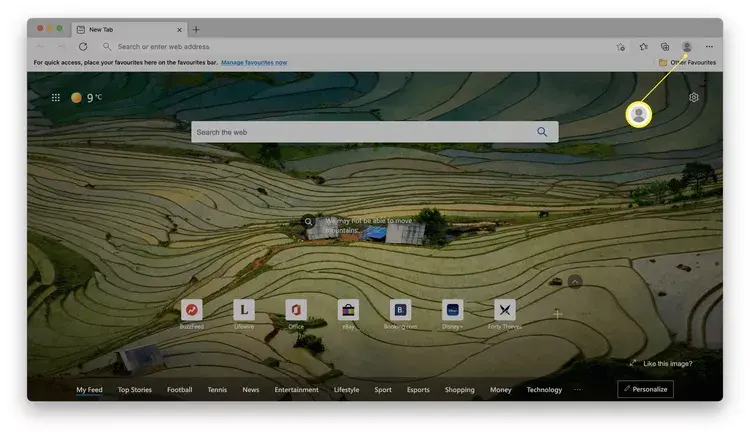
Click on your profile image in the right-hand corner.
-
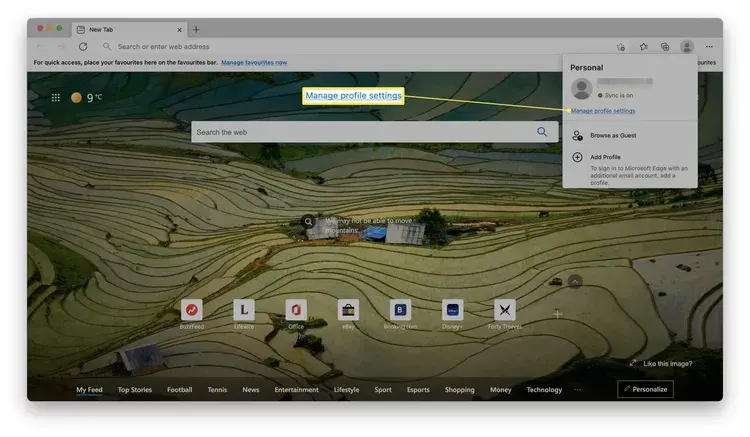
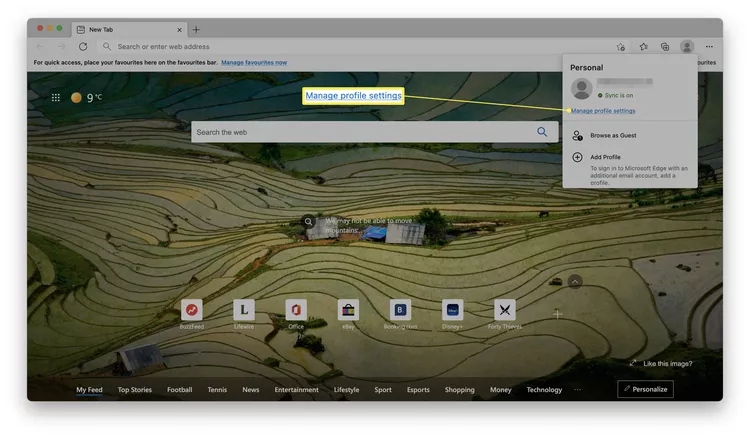
Click Manage profile settings.
-
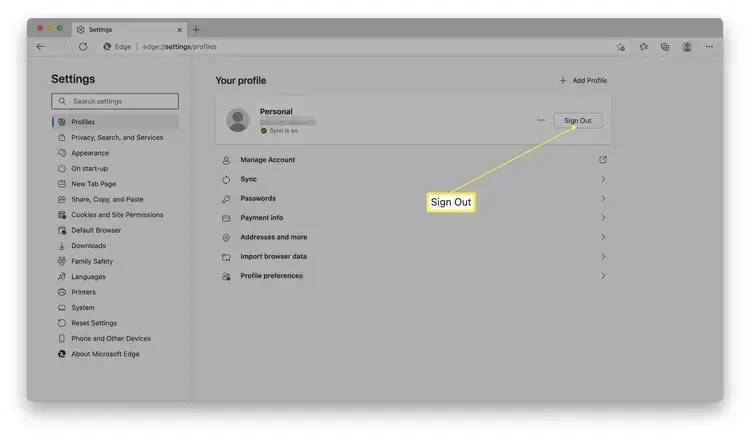
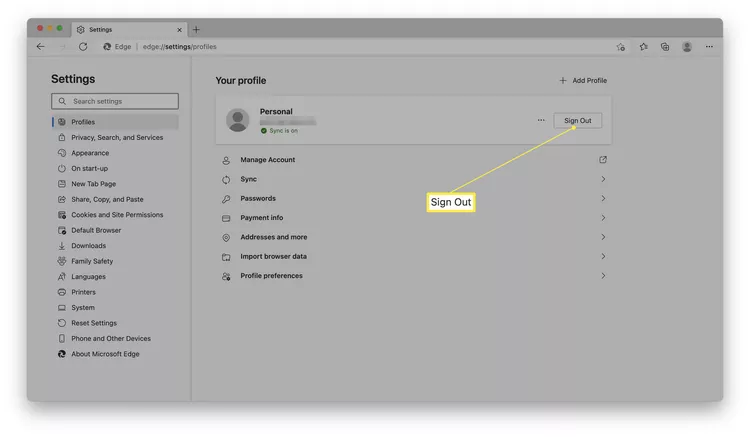
Click Sign Out.
-
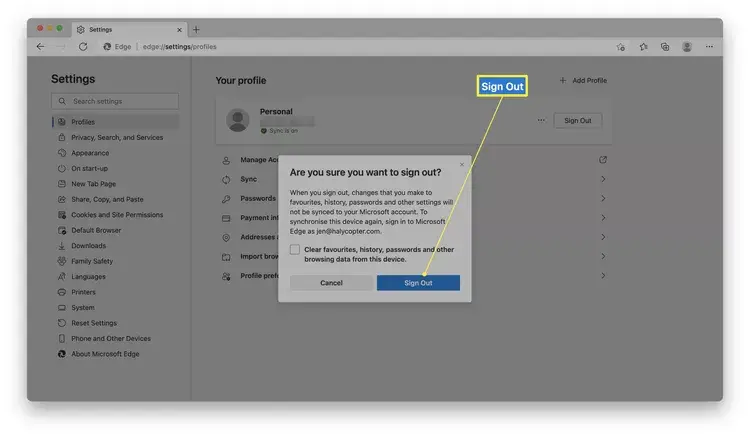
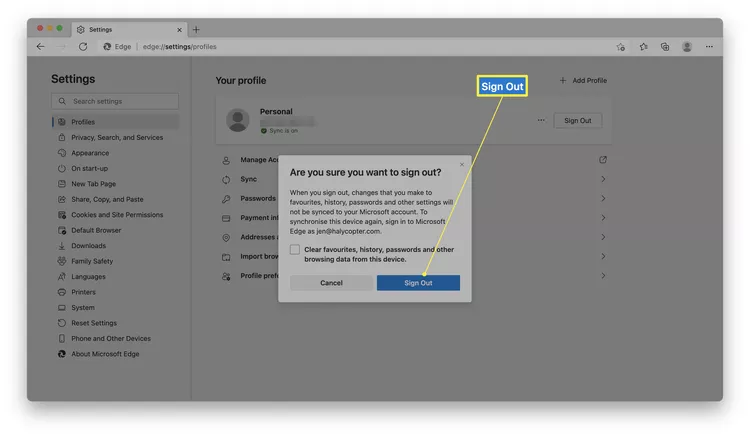
Choose whether to also clear your favourites, history, and passwords when you sign out by clicking the tick box.
-
Click Sign Out.
No comments to display
No comments to display