
Set up a Microsoft 365, Exchange, or Outlook.com email in the iOS Mail app
Set up a Microsoft 365, Exchange, or Outlook.com email in the iOS Mail app


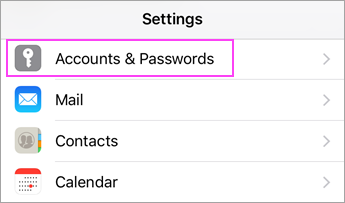
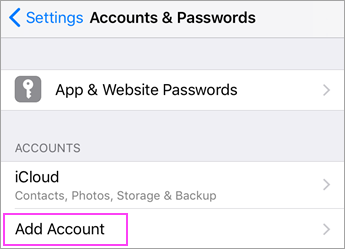
Go to your iPhone or iPad's Settings > scroll down and tap Accounts & Passwords > Add Account.
Note: If you're on iOS 10, go to Mail > Accounts >Add Account.

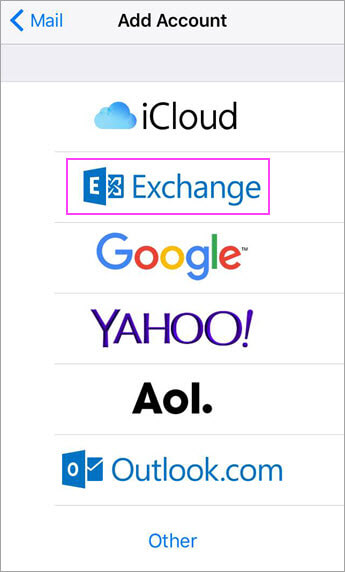
Select Exchange.

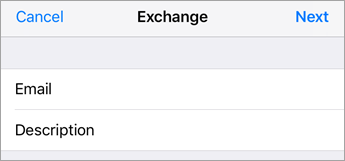
Enter your email into the email box. Tap Next.
Tap Sign In.
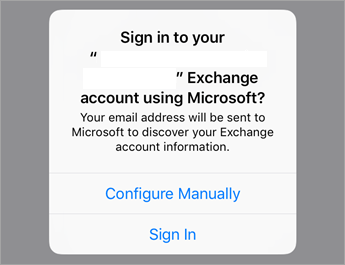

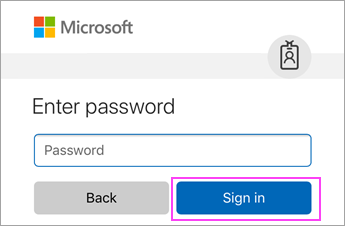
Enter the password associated with your email account. Tap Sign in or Next.

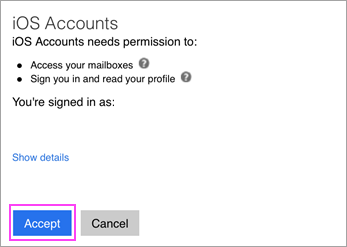
The Mail app may request certain permissions. Tap Accept.

Choose the services you want to sync with your iOS device and tap Save. You're done!
