
Set up a IMAP email in the iOS Mail app
1. Open Settings
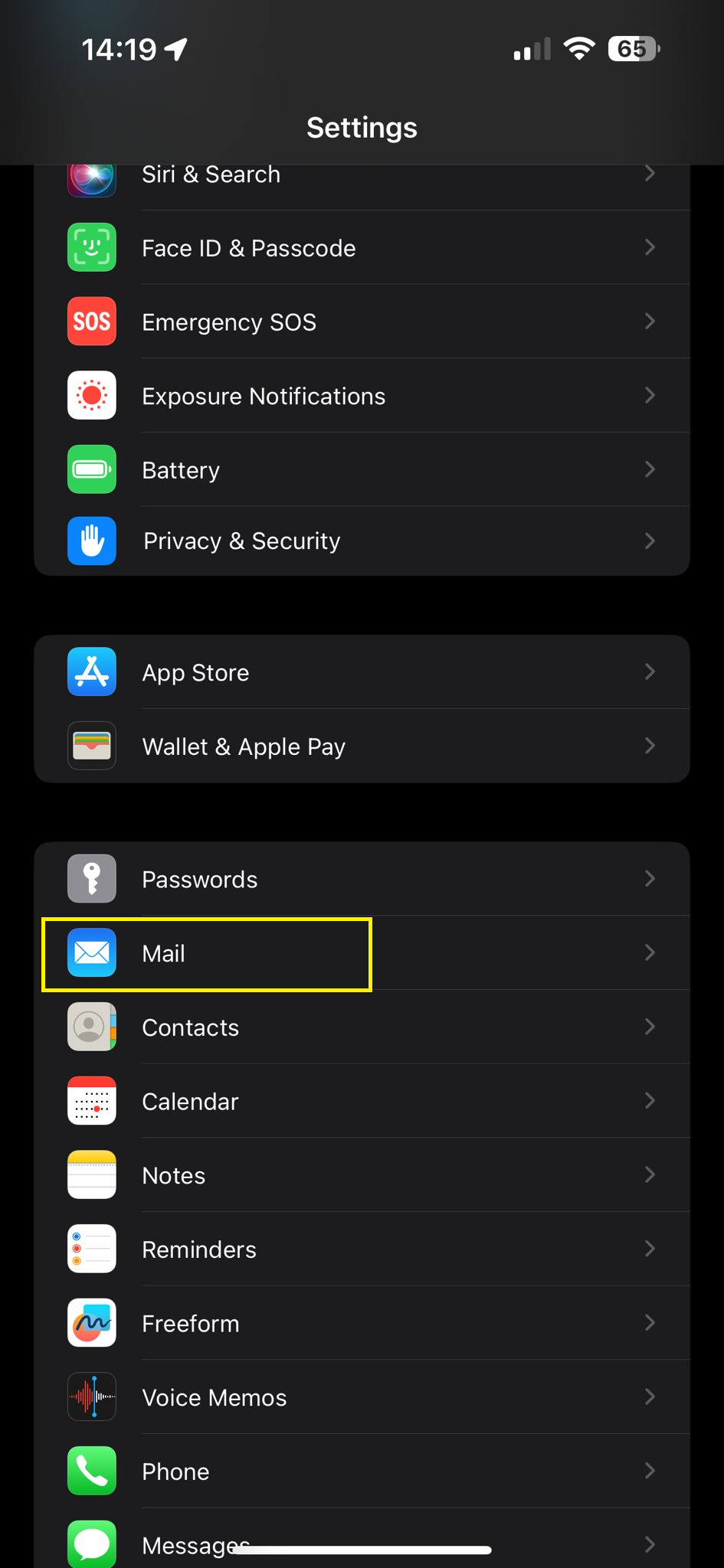
2. Go to Mail
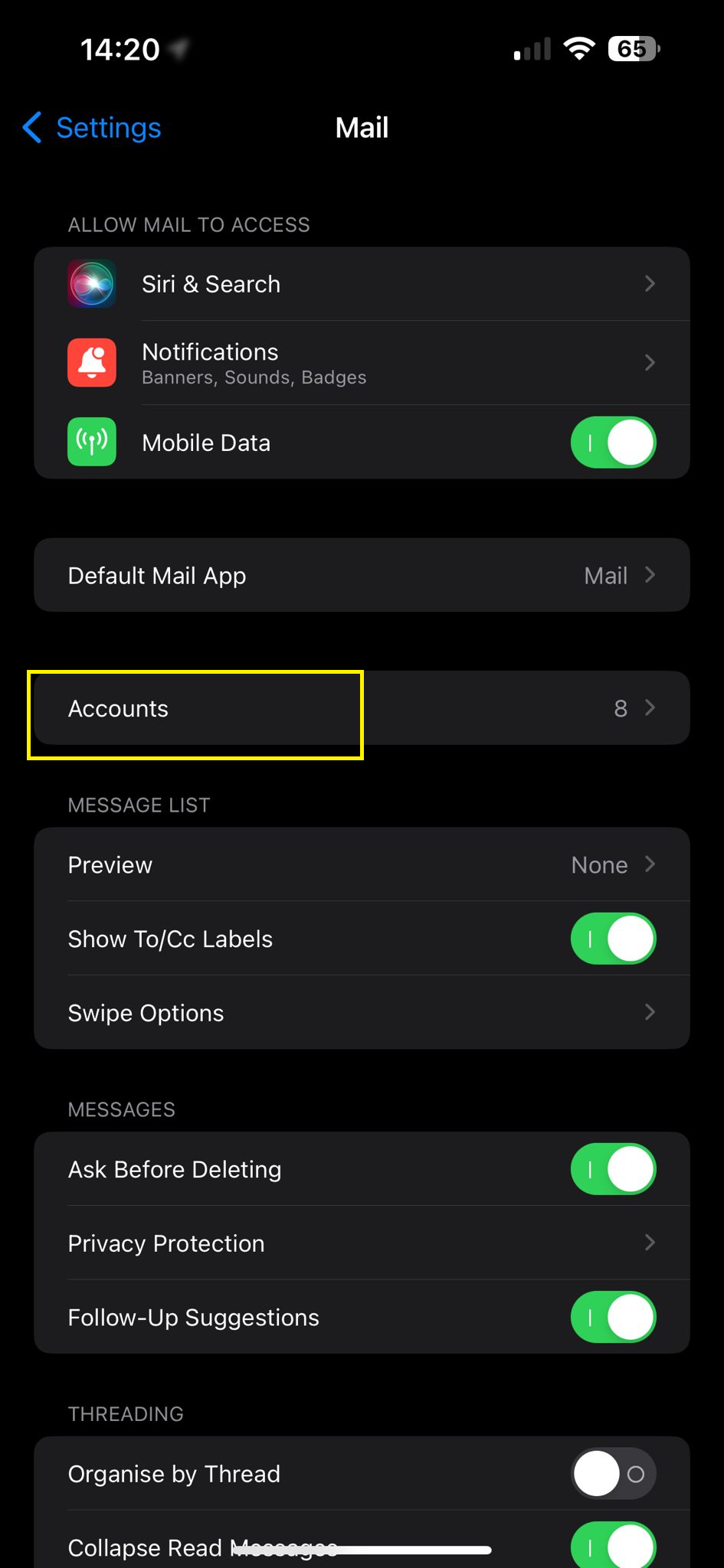
3. Go to Accounts
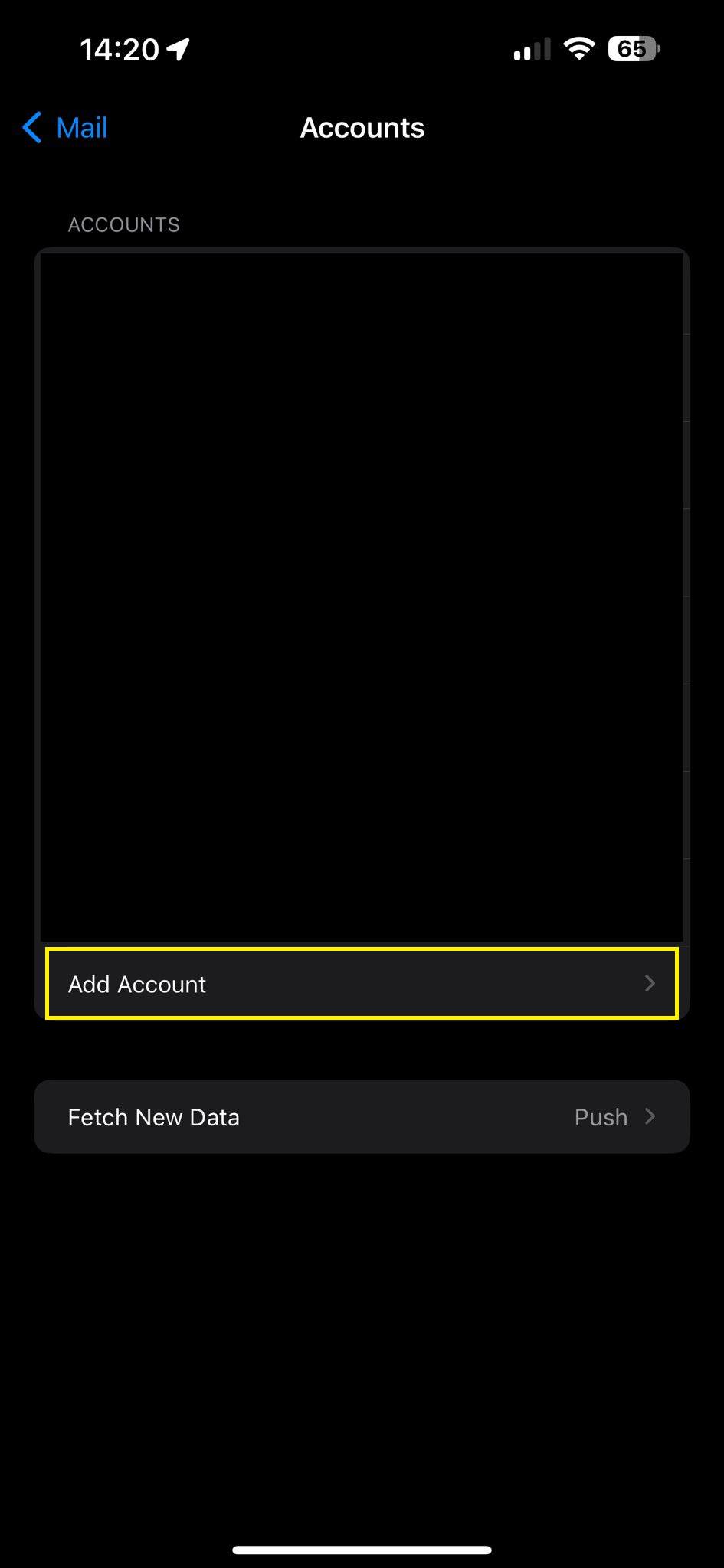
4. Add Account
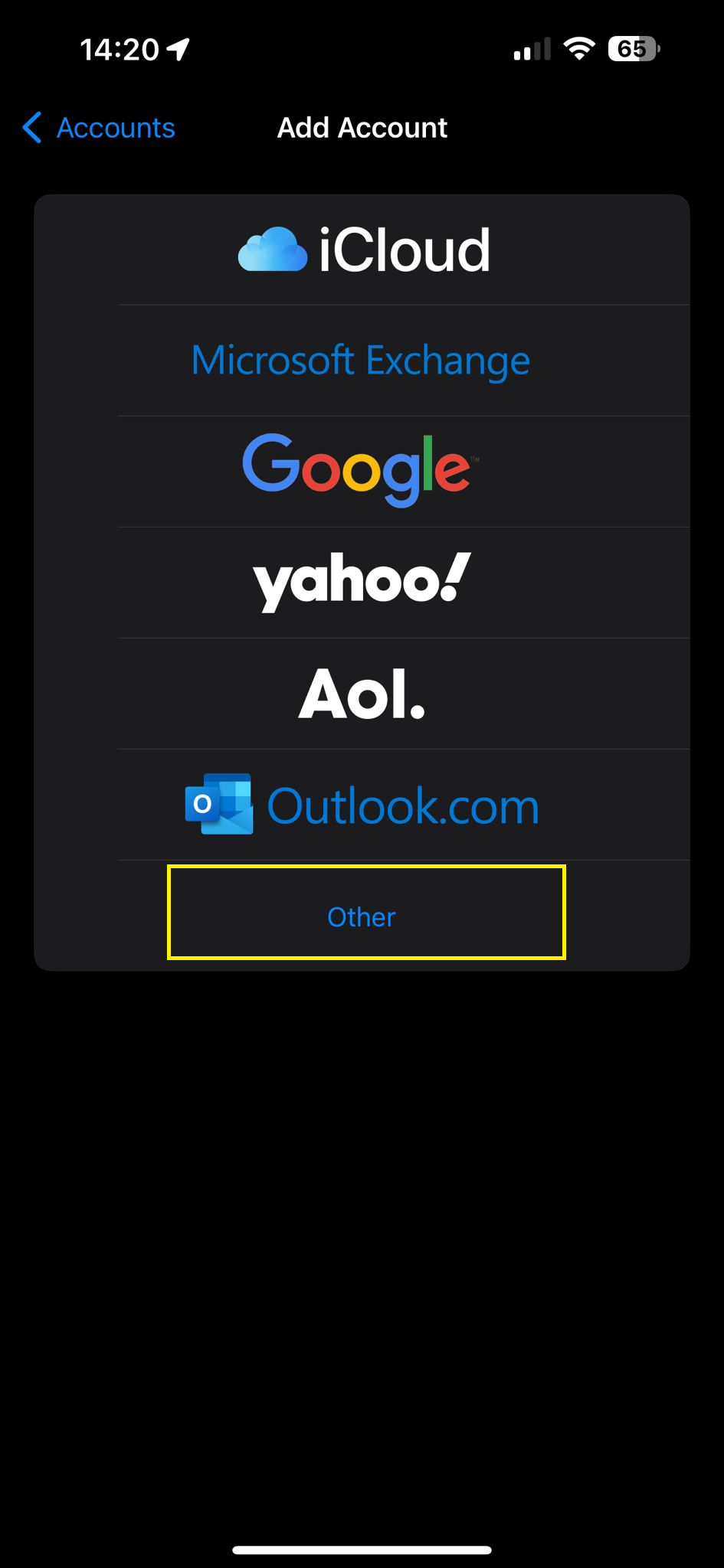
5. Select Other
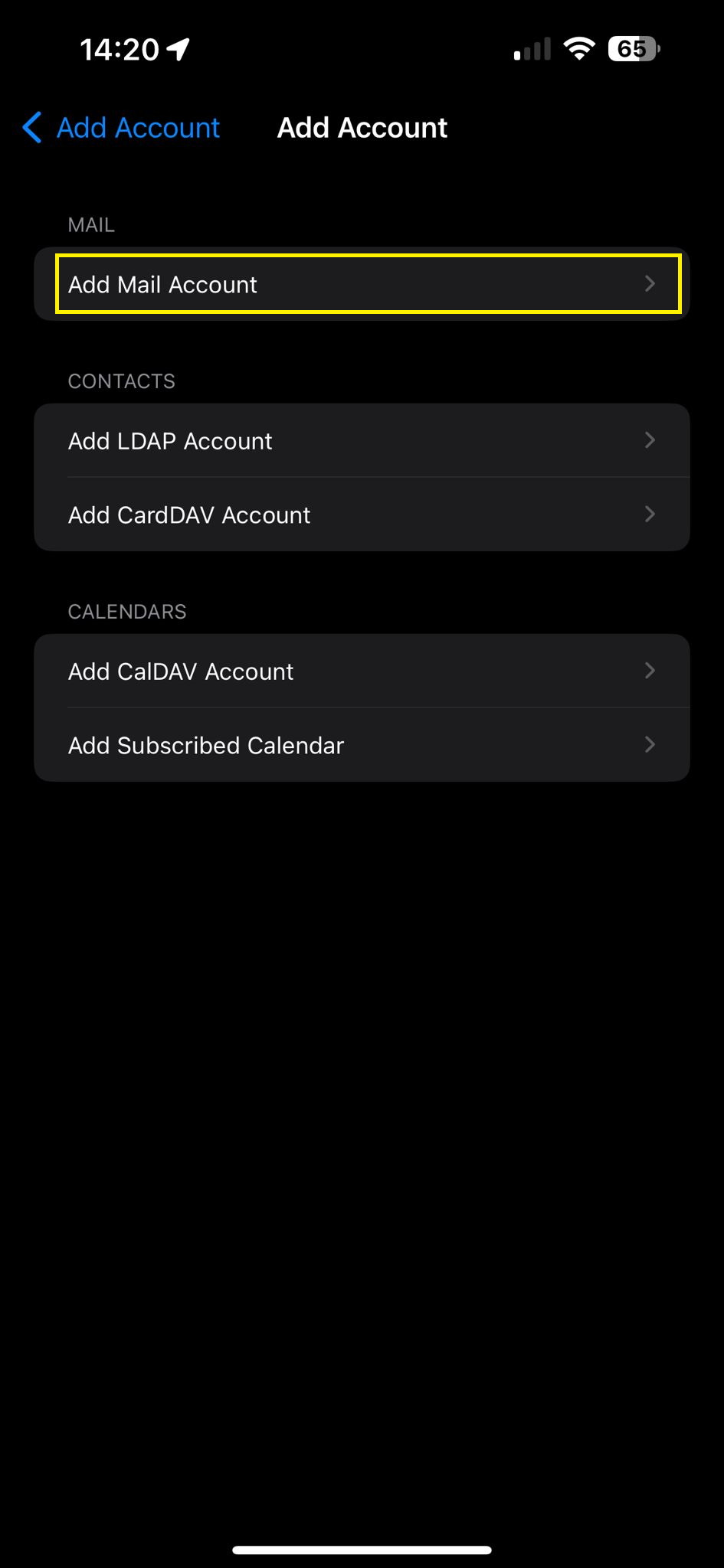
6. Add Mail Account
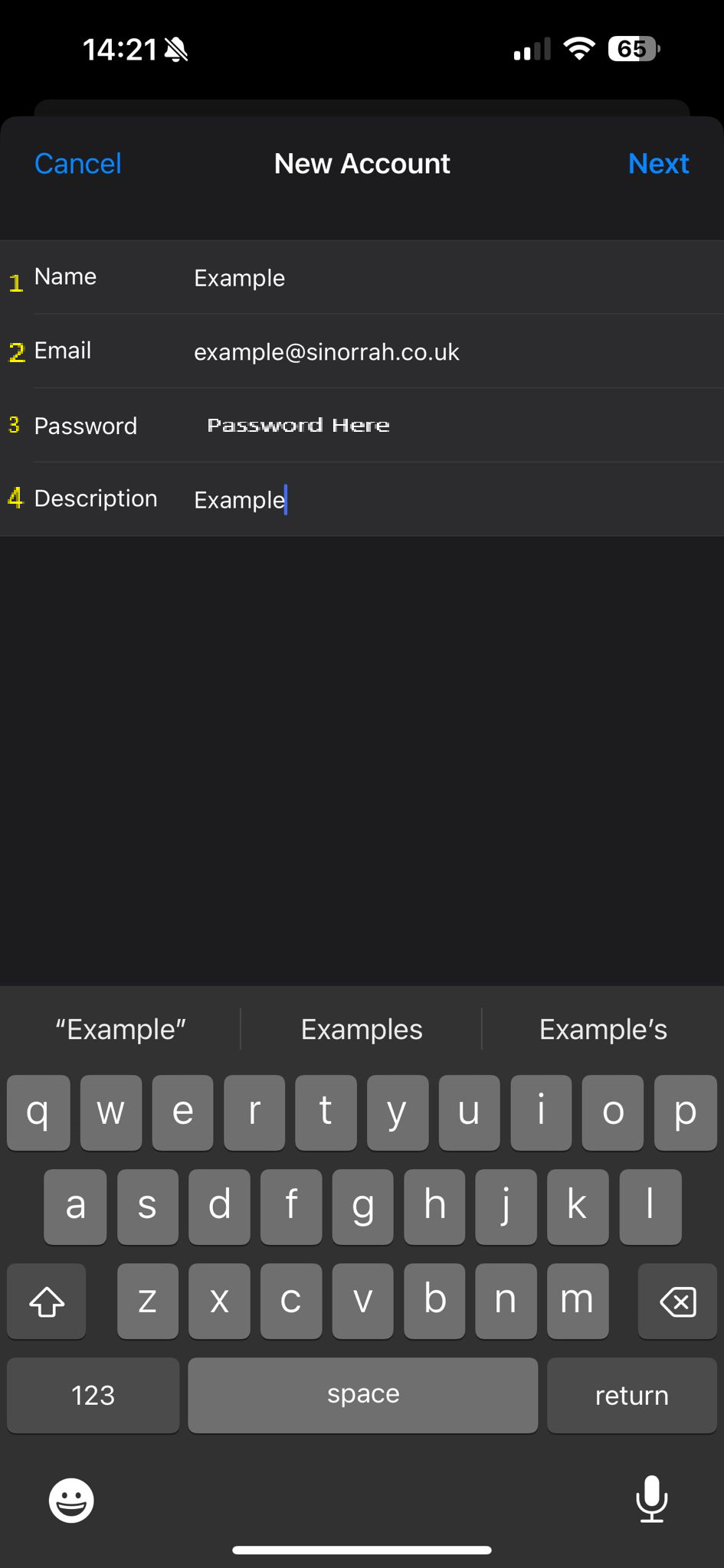
7. Fill out the details below:
Name: Can be anything
Email: Your Email
Password: Your Password
Description: Can be anything
8. Fill out the details below
Name: Can be anything
Email: Your Email
Description: Can be anything
INCOMING MAIL SERVER
Host Name: mail.sinorrah.co.uk
Username: Your Email
Password: Your Password
OUTGOING MAIL SERVER
Host Name: mail.sinorrah.co.uk
Username: Your Email
Password: Your Password
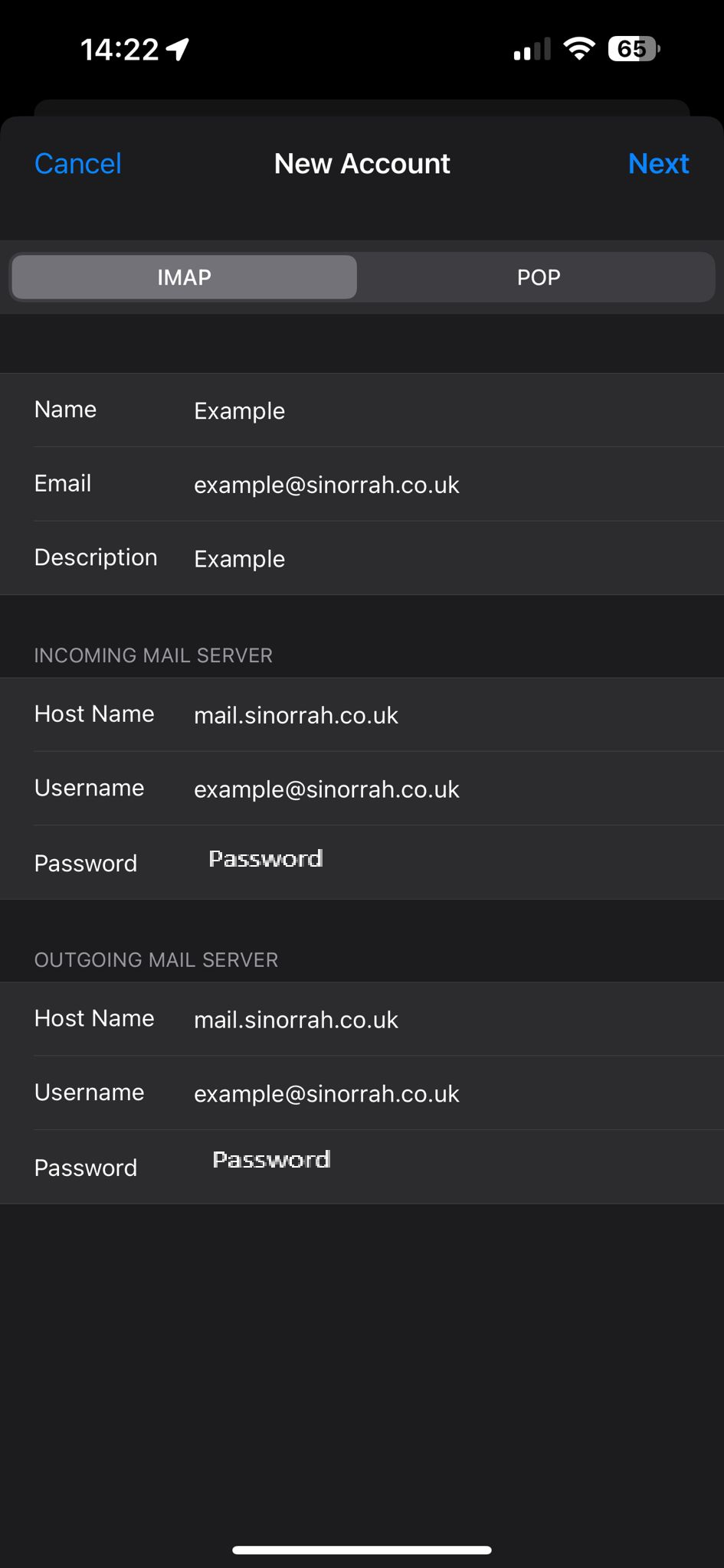
Click Next
9. If the details are correct, you can pick which items you want to sync (mail, calendercalendar etc), the defaults are normally fine so just press next
10. Email has now been added