VPN Guides - Wireguard
- VPN Guides - Wireguard Windows Installation
- VPN Guides - Wireguard Import Config
- VPN Guides - Wireguard MAC Installation
VPN Guides - Wireguard Windows Installation
- Go to https://download.wireguard.com/windows-client/wireguard-installer.exe
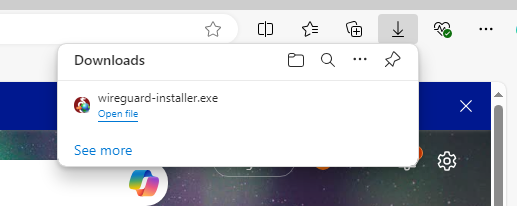
- The file should start downloading, once it's downloaded please open the file (Edge Example Below)

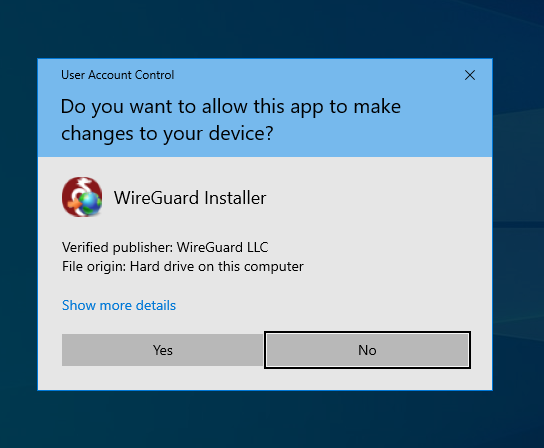
- Click Yes

- If the WireGuard GUI opens like below, WireGuard is now installed.

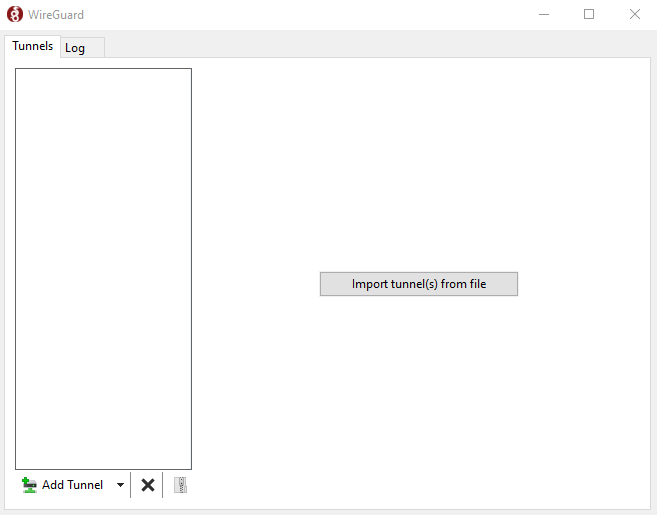
VPN Guides - Wireguard Import Config
1. Open WireGuard
2. Download the WireGuard config file that has been sent to you, if you do not have it please contact us.
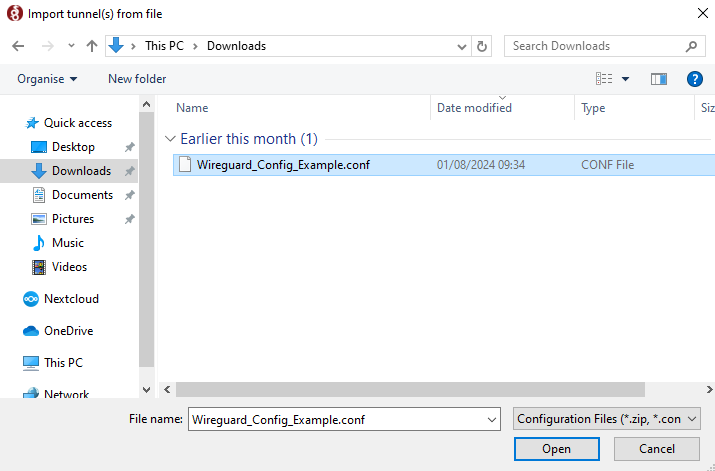
3. Click "Add Tunnel" then click "Import Tunnel(s) from file"
4. Find the WireGuard config file you previously downloaded and click open.
5. Select the Tunnel and click activate
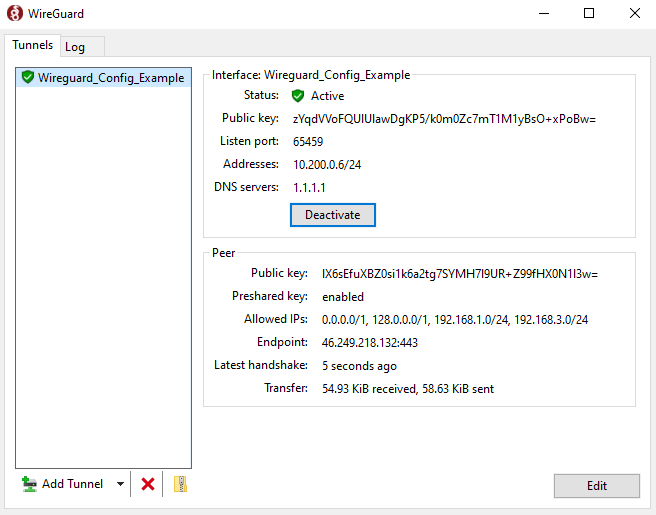
6. To know if the VPN is functioning either
A. Look at the transfer, if these numbers are both going up, the VPN is live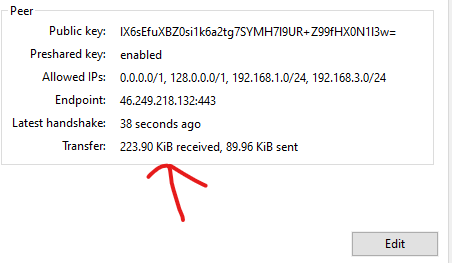
B. Go to a resource that is only available over the VPN
If you are still having issues, please contact us :)
VPN Guides - Wireguard MAC Installation
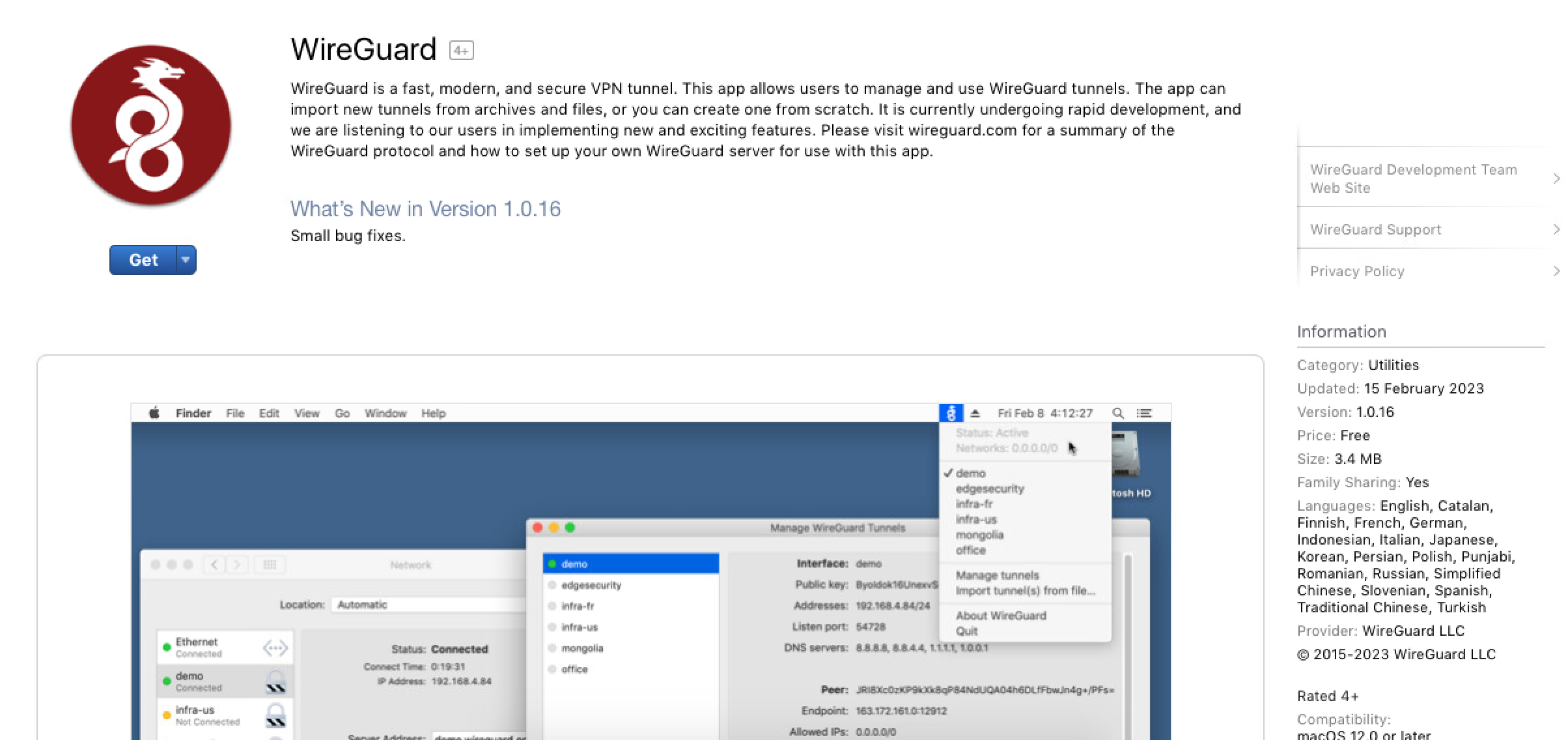
- Go to https://itunes.apple.com/us/app/wireguard/id1451685025?ls=1&mt=12 or the App Store and download "Wireguard" and choose "Get" then "Install App"

- Once downloaded and installed. Click Open
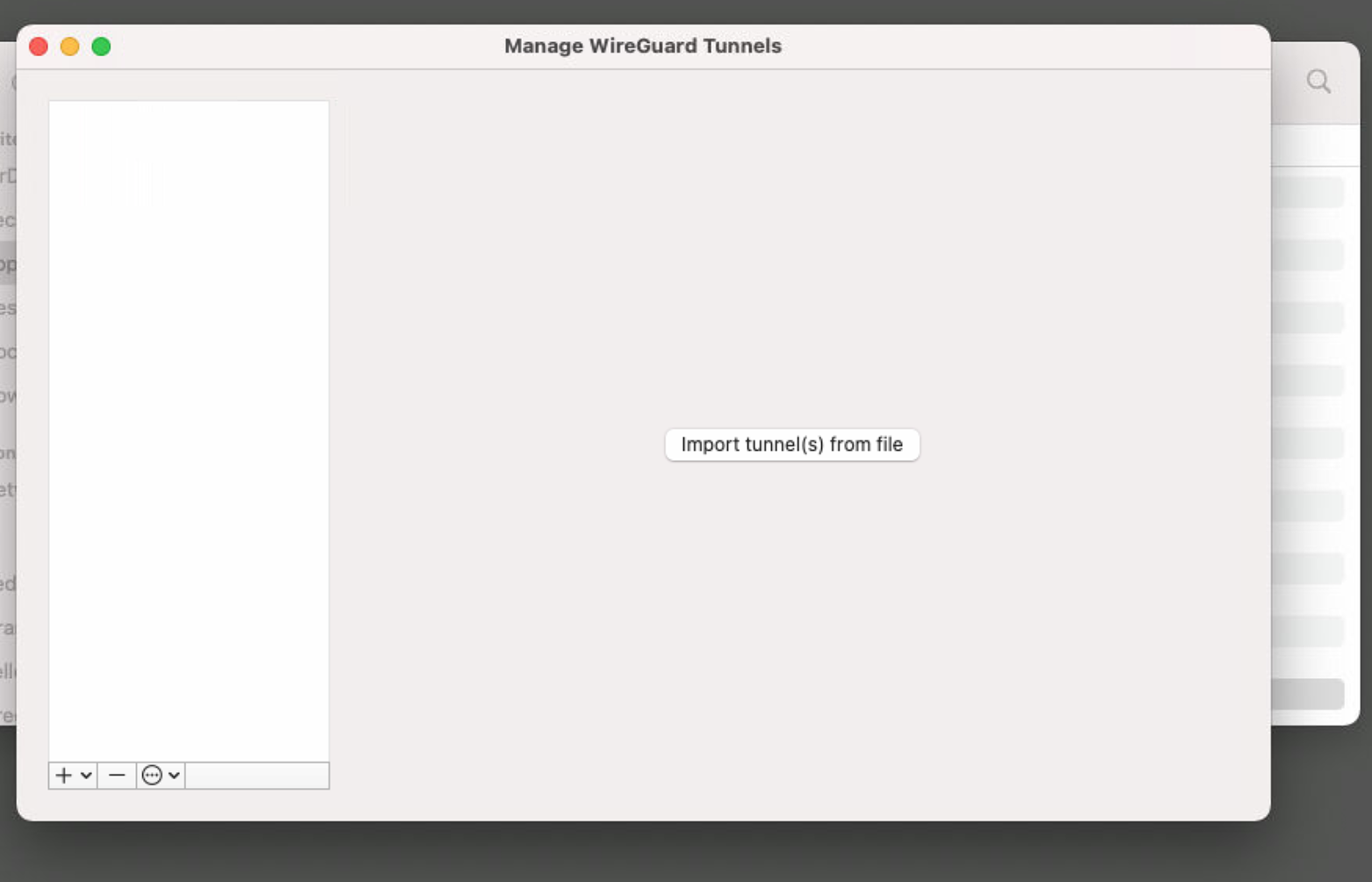
- If the WireGuard GUI opens like below, WireGuard is now installed.

- Click "Import Tunnel(s) from file and choose the config file you have been sent