Installing Nextcloud
- Install Nextcloud on Windows
- Install Nextcloud on Android
- Install Nextcloud on IPhone/IPad (IOS)
- Install Nextcloud on Mac (macOS)
Install Nextcloud on Windows
Install Nextcloud on Windows
Installing Nextcloud on Windows
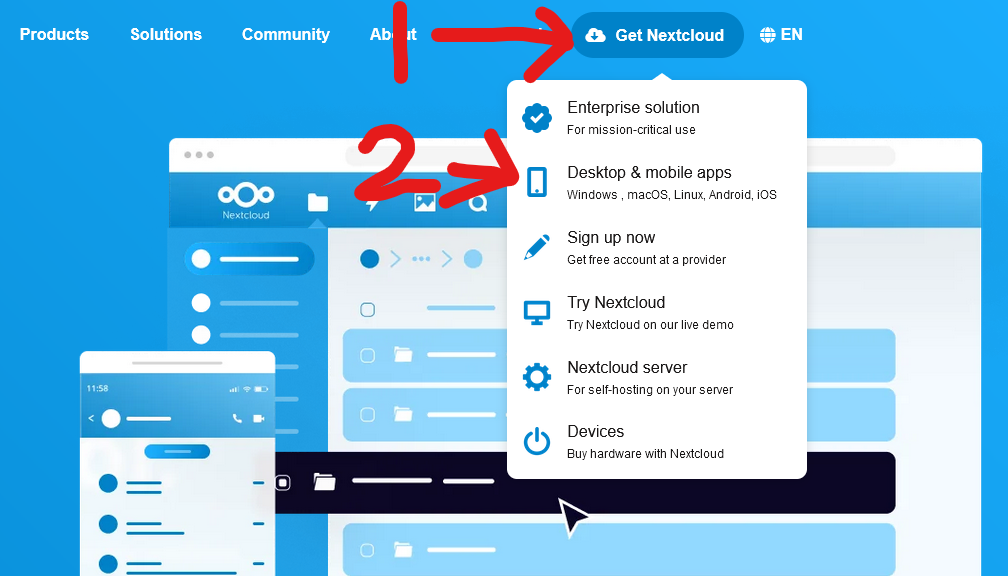
- Go to Nextcloud.com
- Along the top of the page go to "Get Nextcloud", then click "Desktop & Mobile Apps"

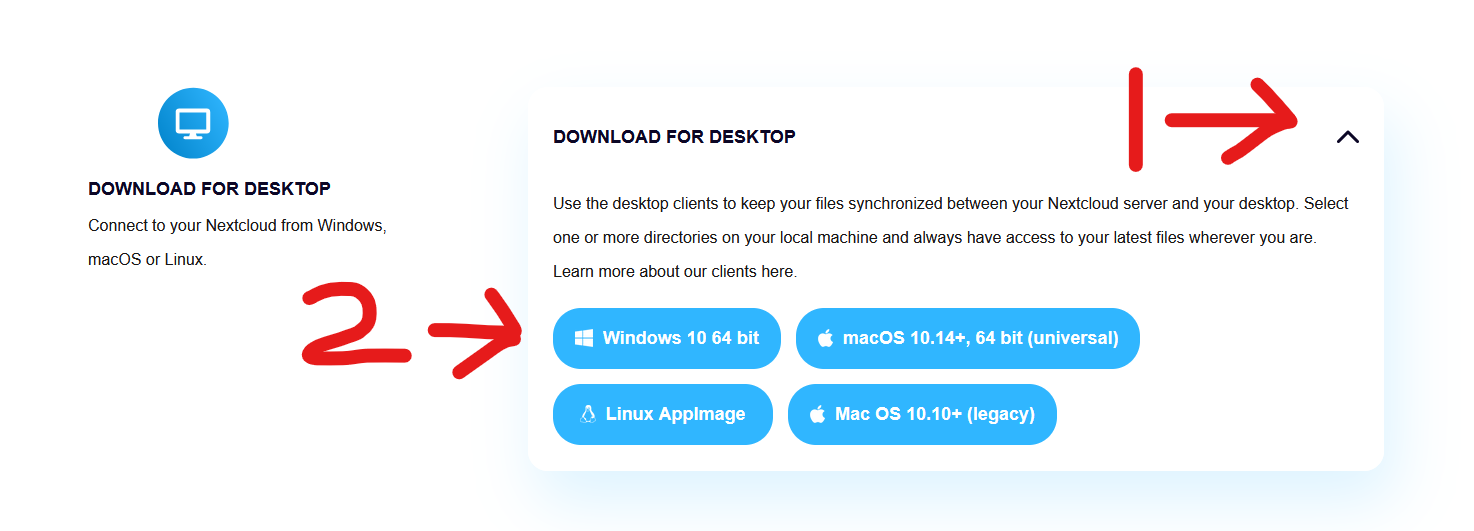
- Scroll down to "Download For Desktop", click the drop arrow, then click "Windows 10 64bit"

- A file should start downloading, you should see this near the top or bottom of your screen.
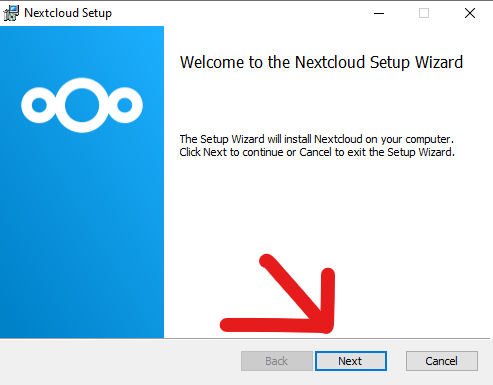
- Open the file and the Nextcloud Setup Wizard should open
- Click Next

-
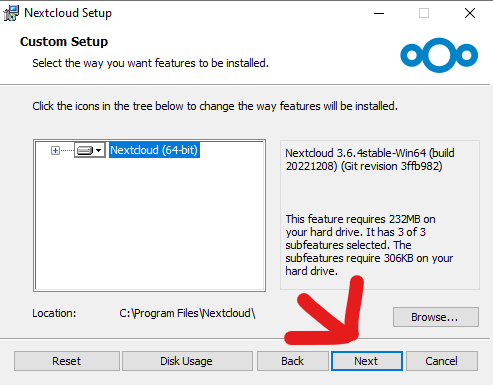
Click Next again

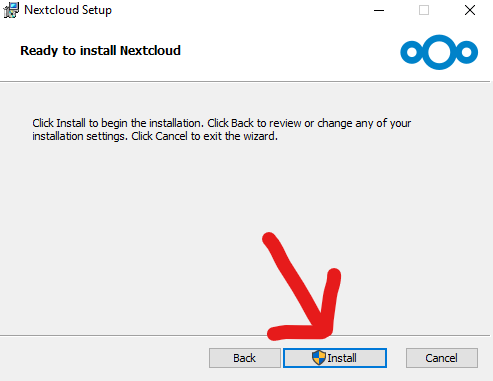
- Click Install

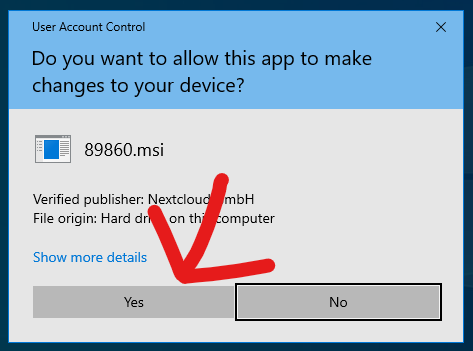
- Click yes to the pop up

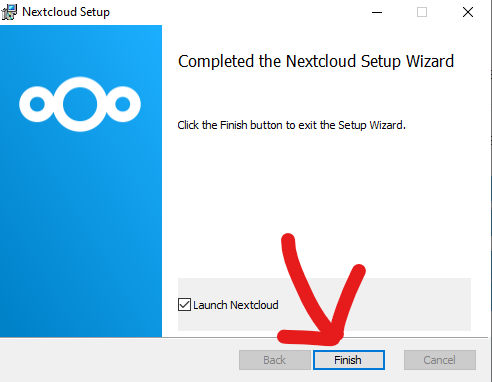
- Click Finish

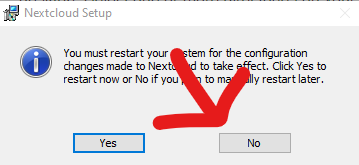
- If you get a pop up asking to restart, click No

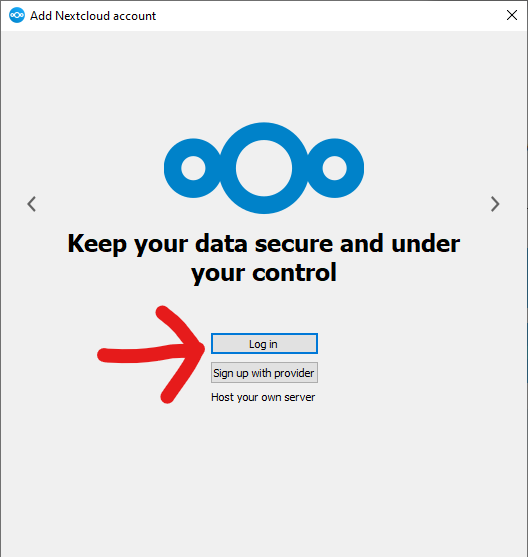
- Nextcloud should now open, click "Log In"

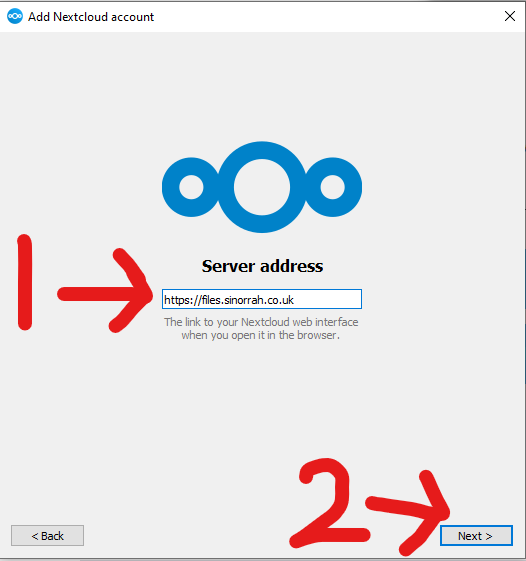
- Inside the "Server Address" box, enter "https://files.sinorrah.co.uk", then click next

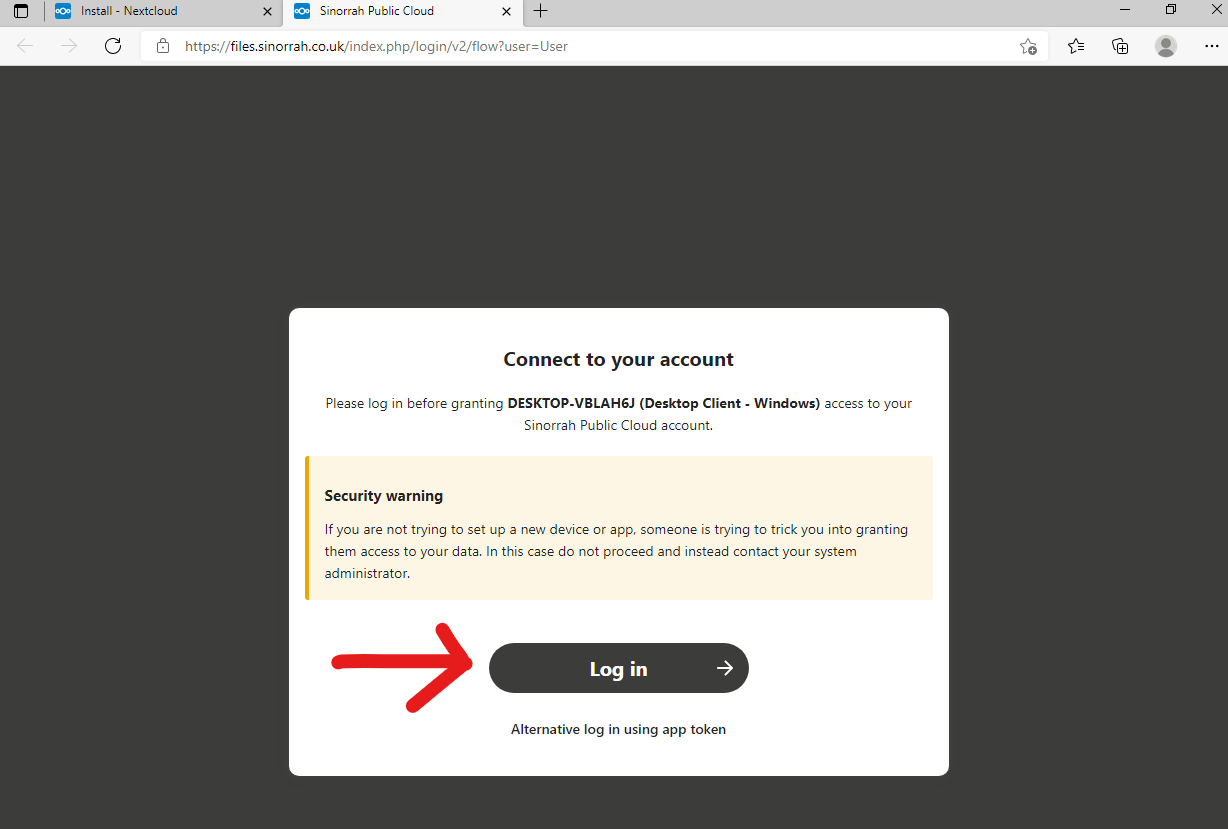
- A website should open asking to "Connect to your account", Click "Log In"

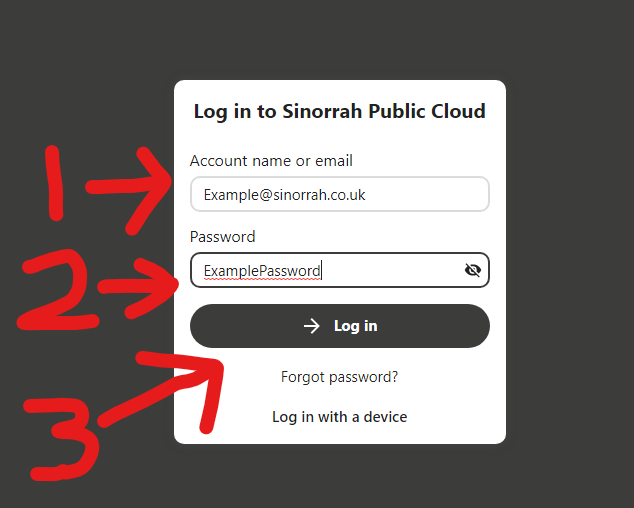
- You should now be greeted with a login page, please put your email in the "Account name or Email" box, then put your password in the "Password" box, then click "Log in"

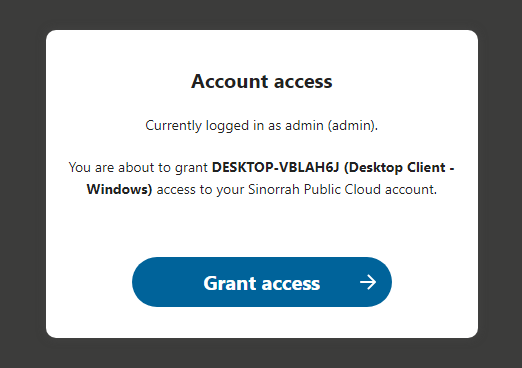
- Click "Grant Access"

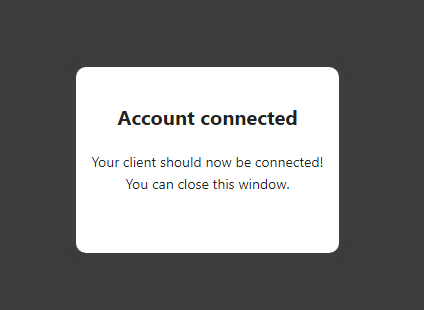
- If logged in correctly, you should see this screen and nextcloud pop back up

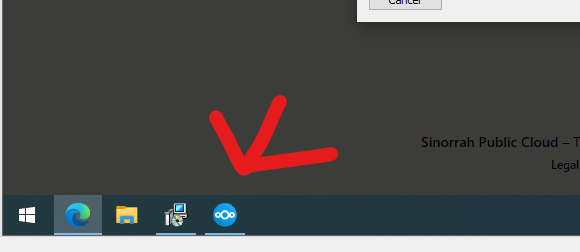
If nextcloud does not pop back up, you should be able to open it from your task bar.
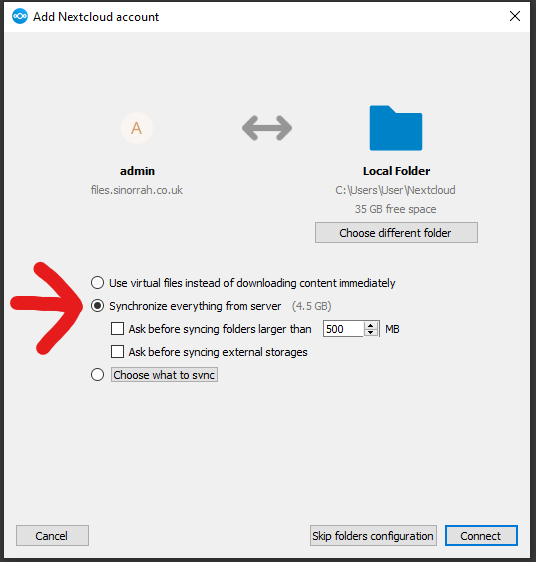
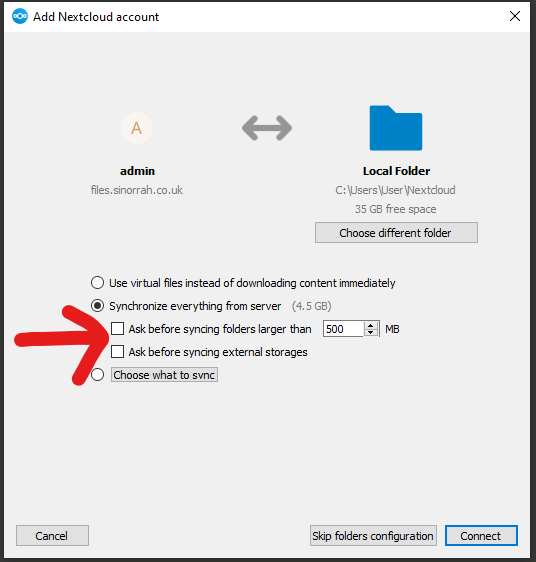
- Select "Synchronize everything from server"

- Make sure both "Ask before Syncing" are unticked

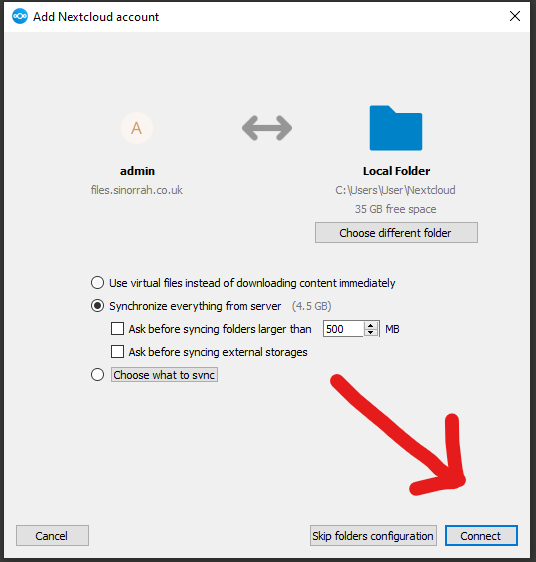
- Click Connect

- If all is successful you should now see nextcloud syncing in the bottom right of your screen.
- Nextcloud is now fully installed and setup on your machine, we recommended to do a reboot after installing nextcloud.
Install Nextcloud on Android
Install Nextcloud on Android
Installing Nextcloud on Android
- Open the Google Playstore
- Search "Nextcloud"
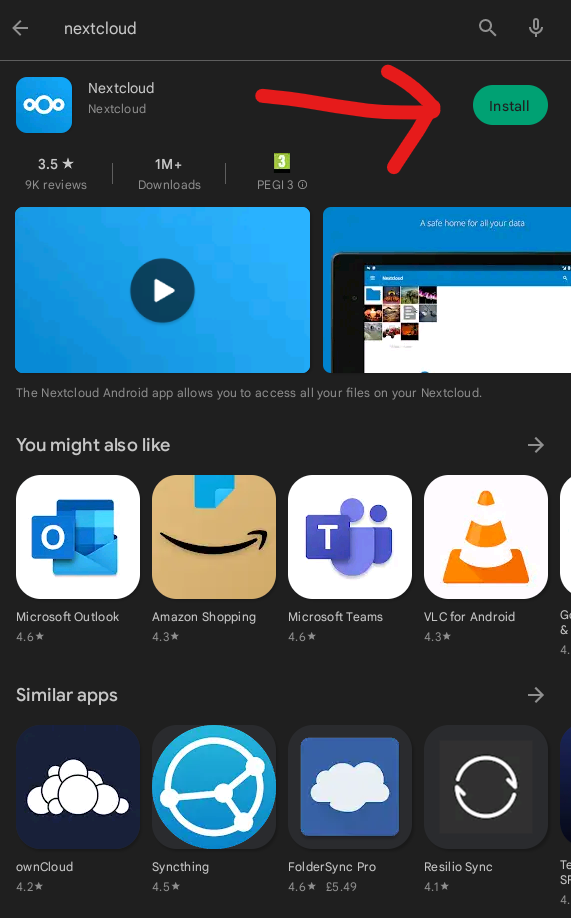
- Install the Nextcloud App

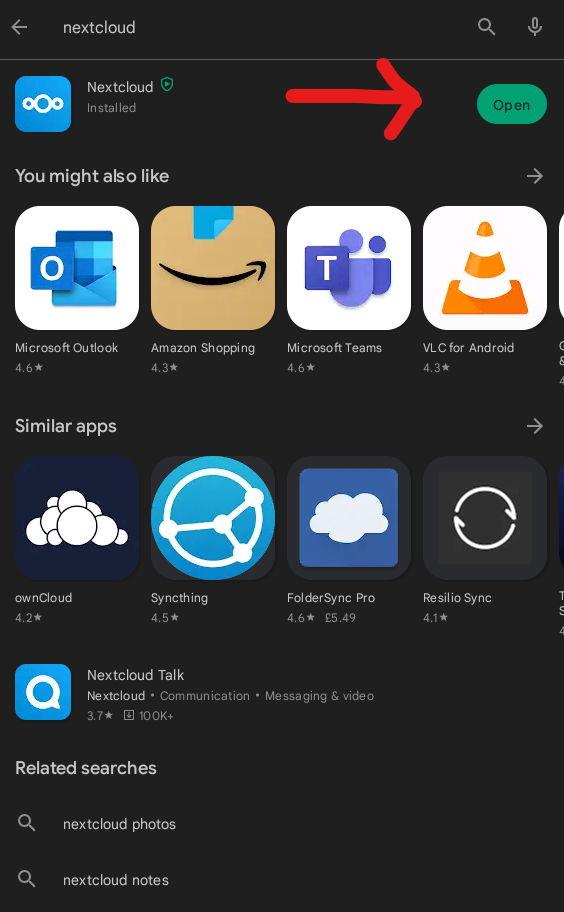
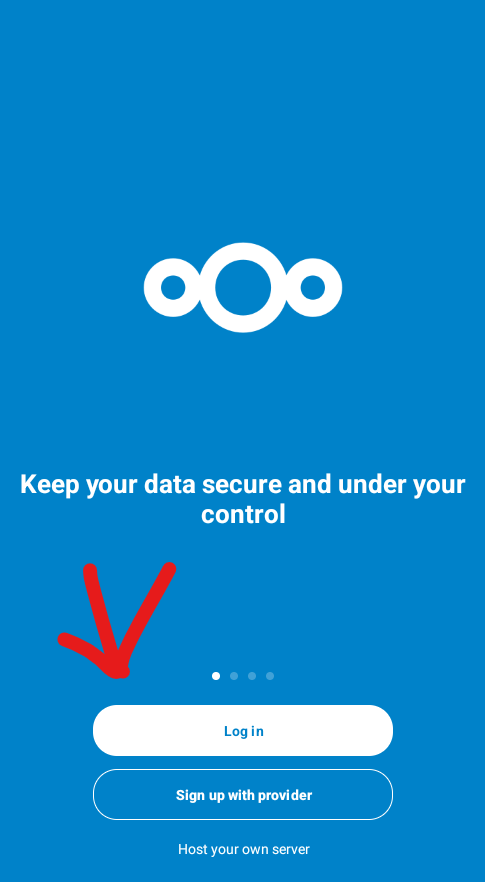
- Open the Nextcloud App

- Press Log in

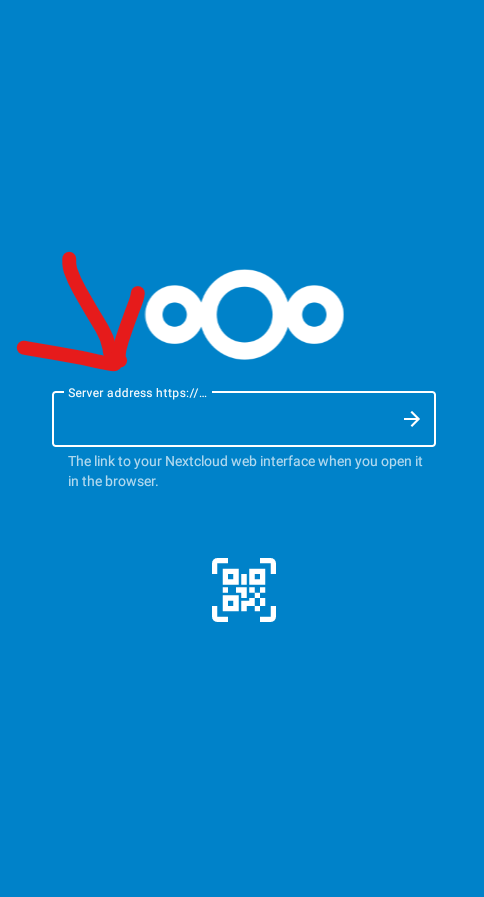
- Enter in the "Server Address" box "https://files.sinorrah.co.uk"

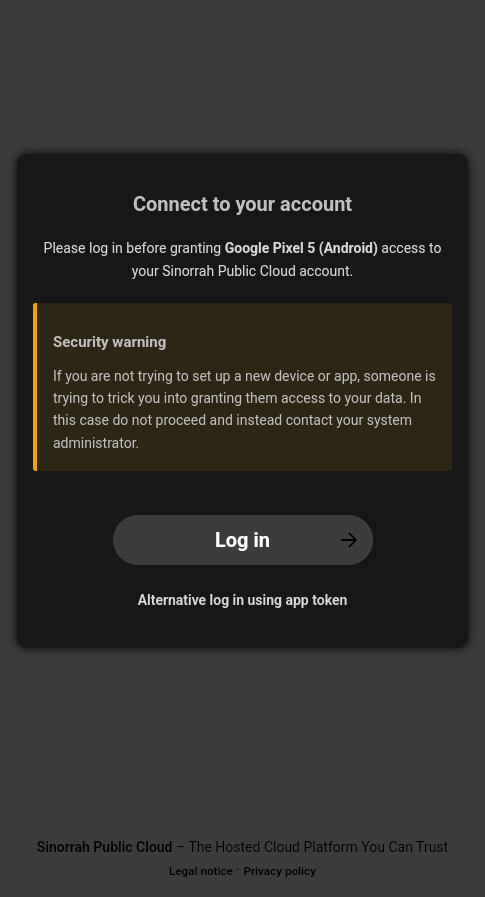
- Press "Log in"

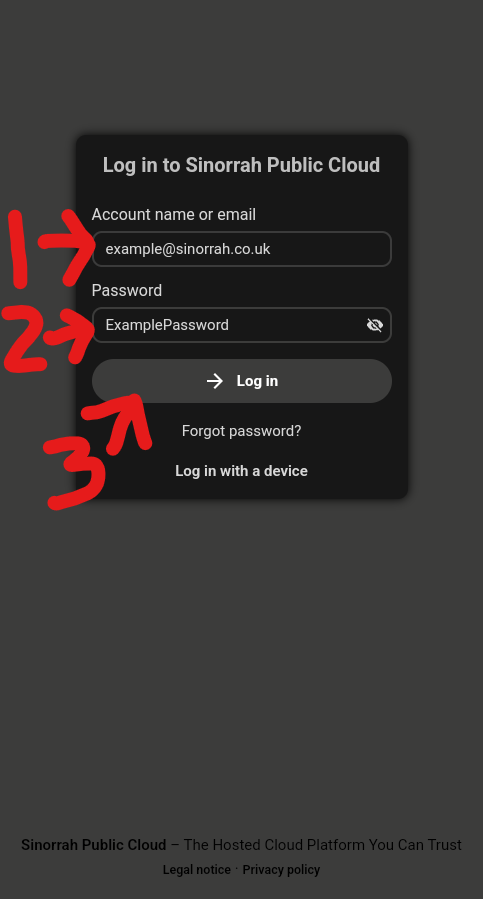
- Enter your email address in the "Account name or email" box, Enter your password in the "Password" box, then press "Log in"

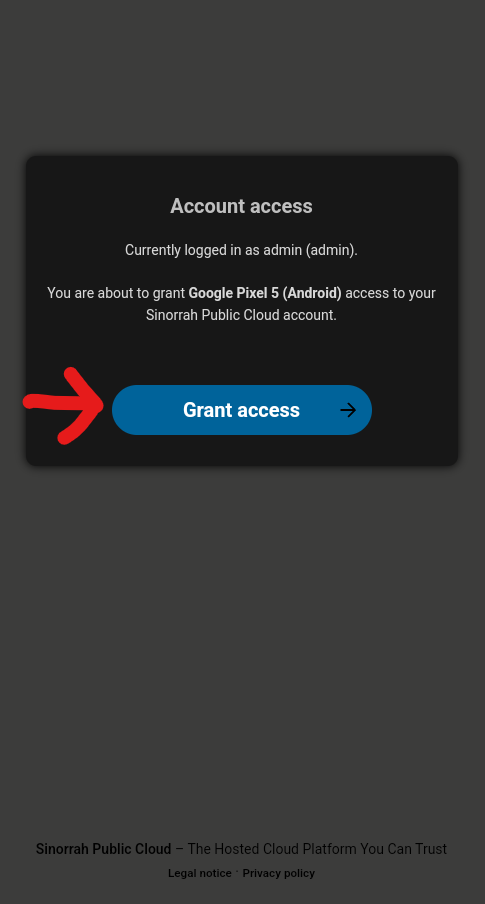
- Press "Grant Access"

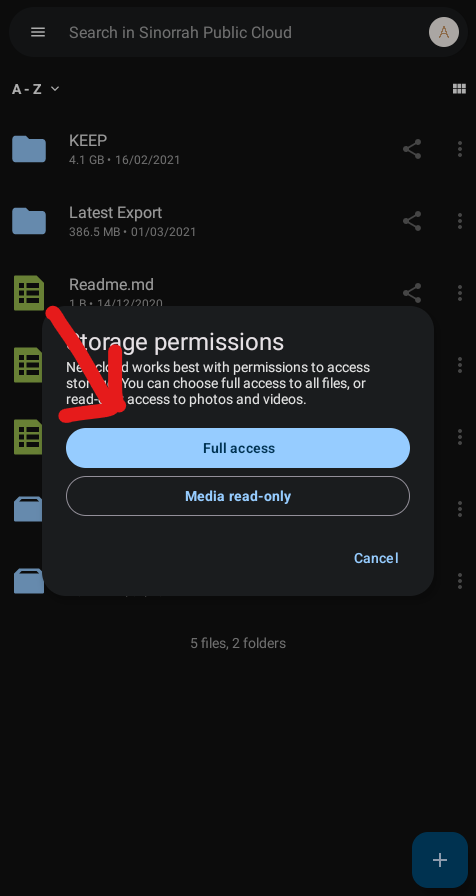
- Depending on your version of android you will either get a pop up asking to "Allow" or "Deny" storage permissions, if this is the case press "Allow".
If you get a pop up like below, press "Full access"
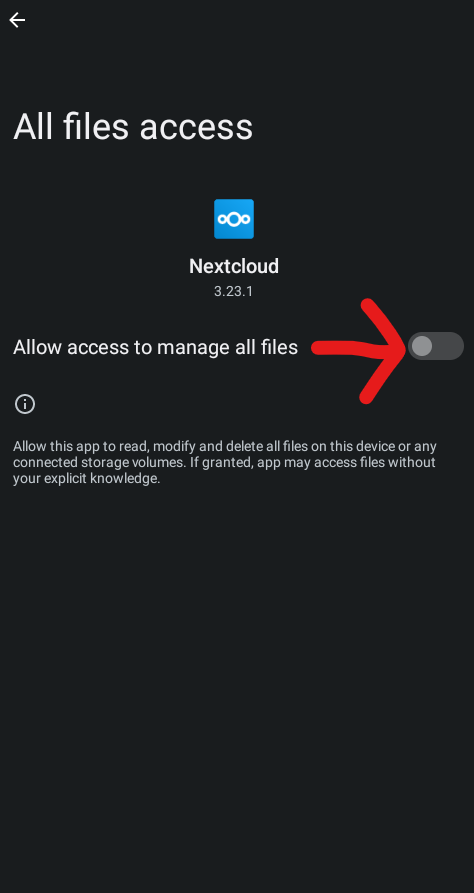
Then toggle the switch to enable it.
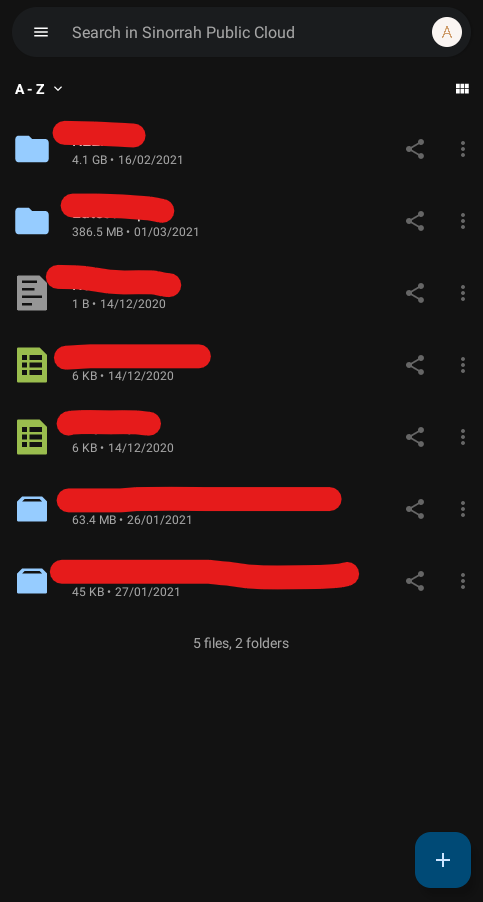
Then press the back button at the top. - Nextcloud should now be setup and ready to go

Install Nextcloud on IPhone/IPad (IOS)
Install Nextcloud on IPhone/IPad (IOS)
Installing Nextcloud on IOS
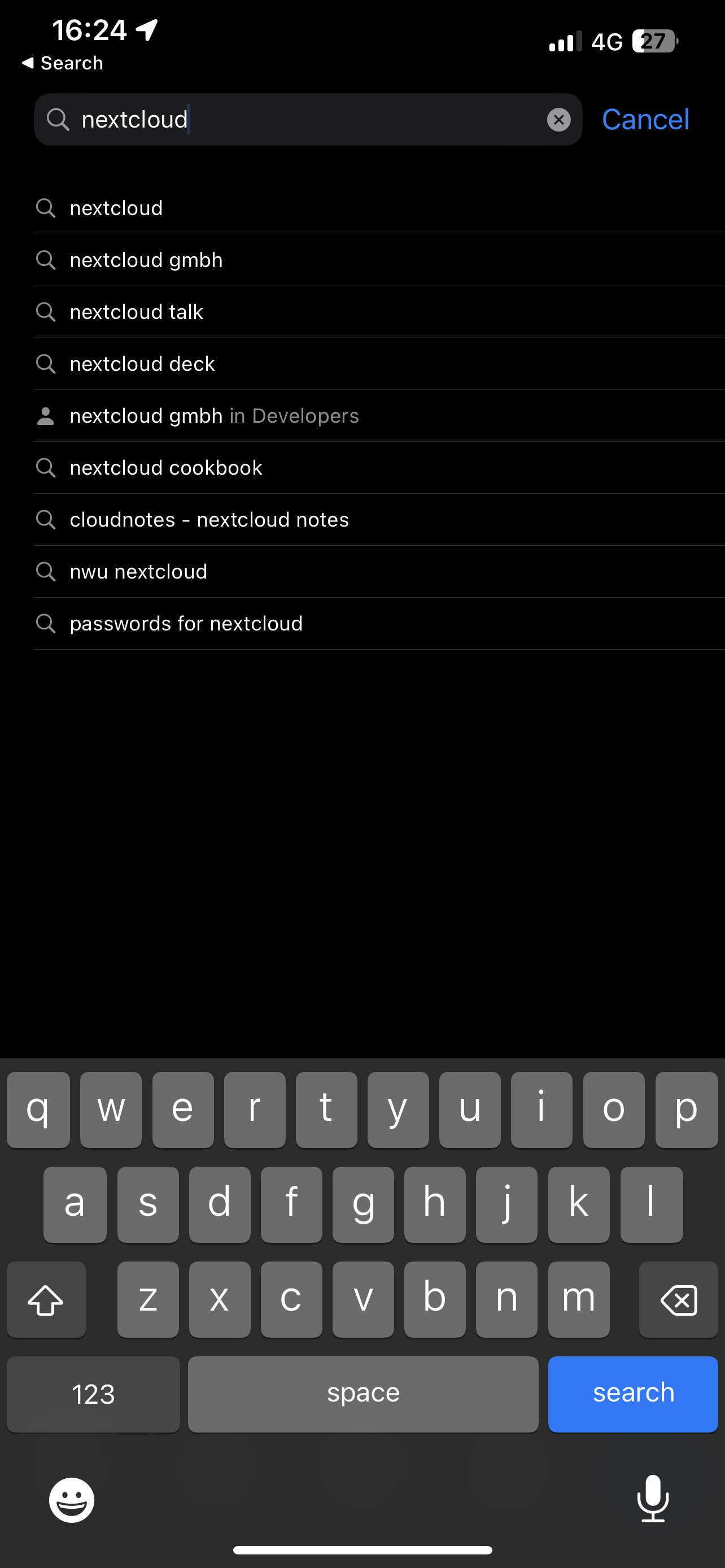
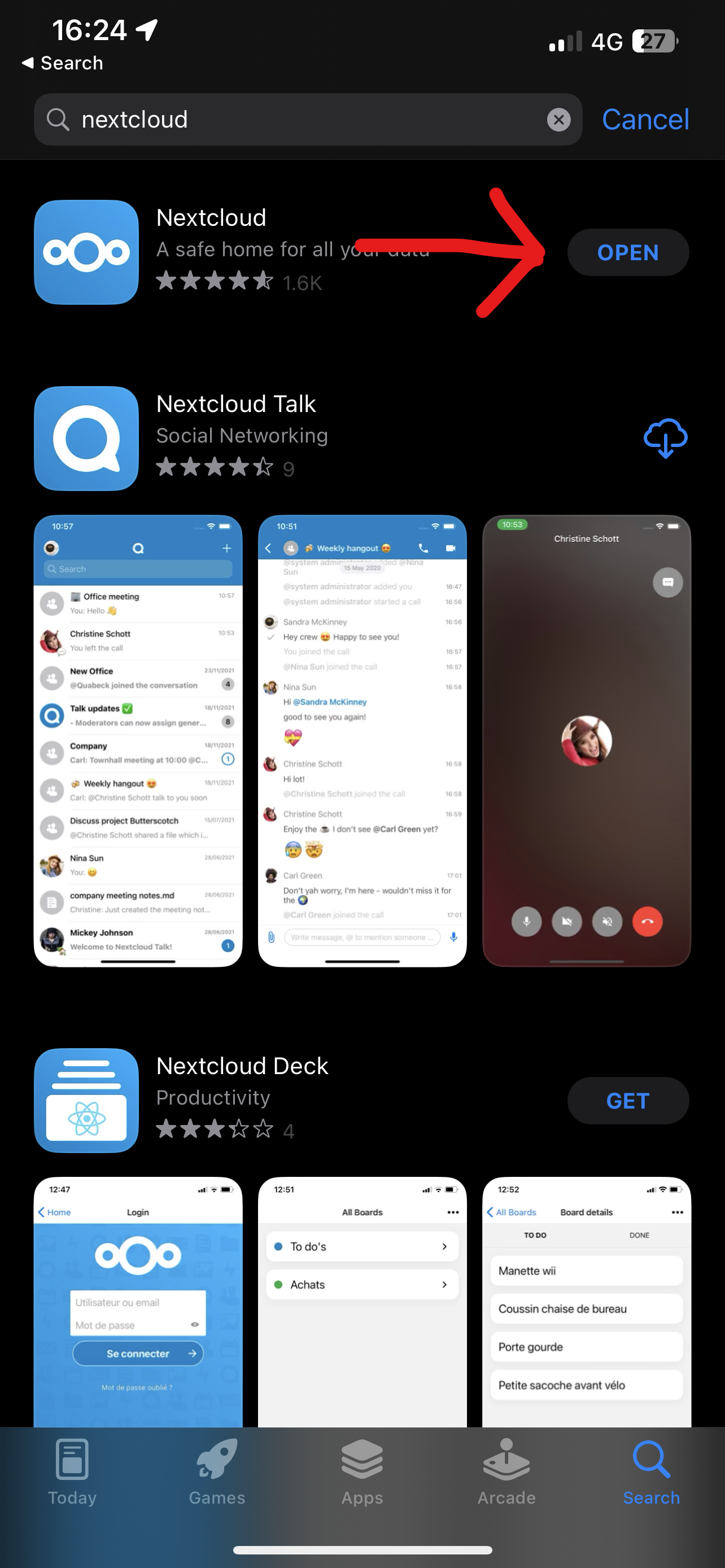
- Open the App store and search "Nextcloud"

- Install the Nextcloud App

- Open the Nextcloud App
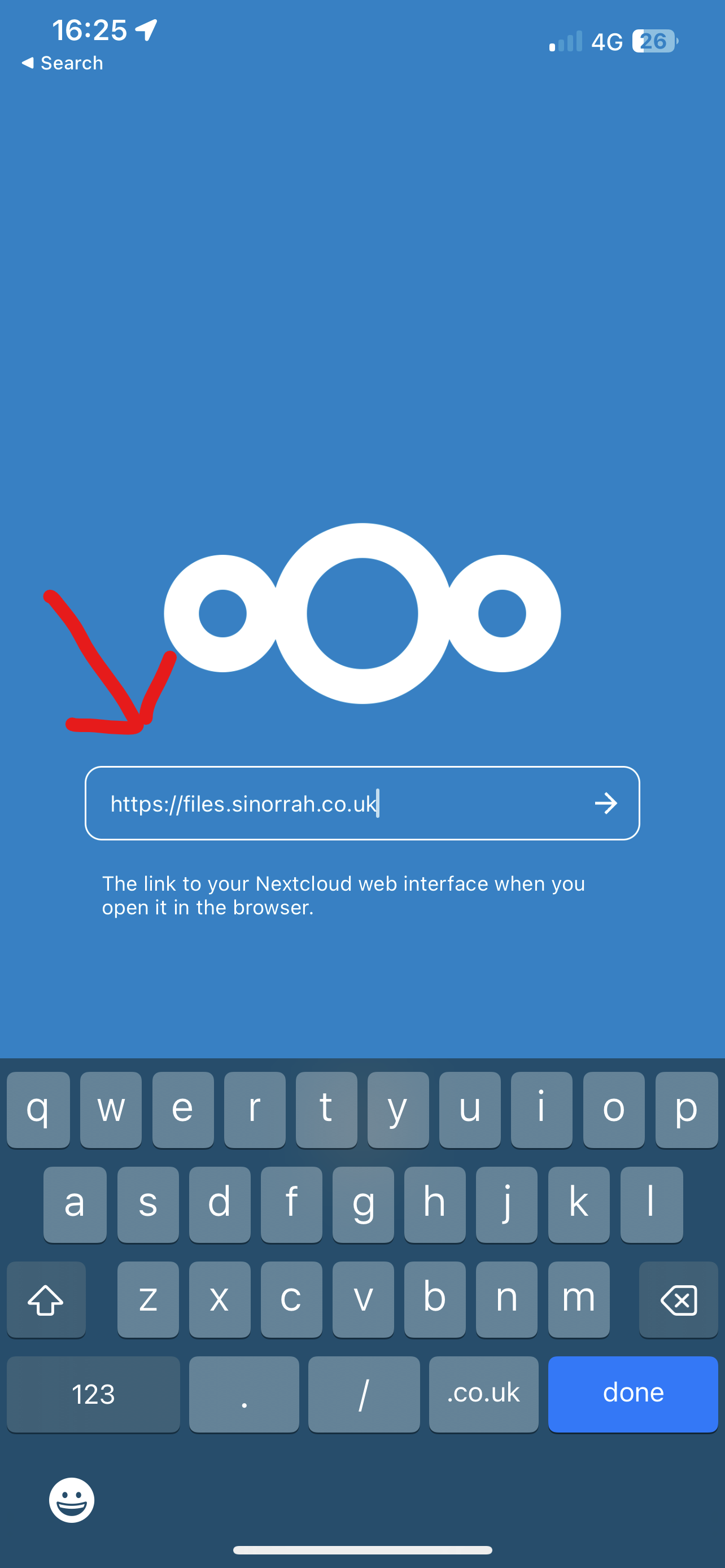
- Press Log In
- Enter in the "Server Address" box "https://files.sinorrah.co.uk"

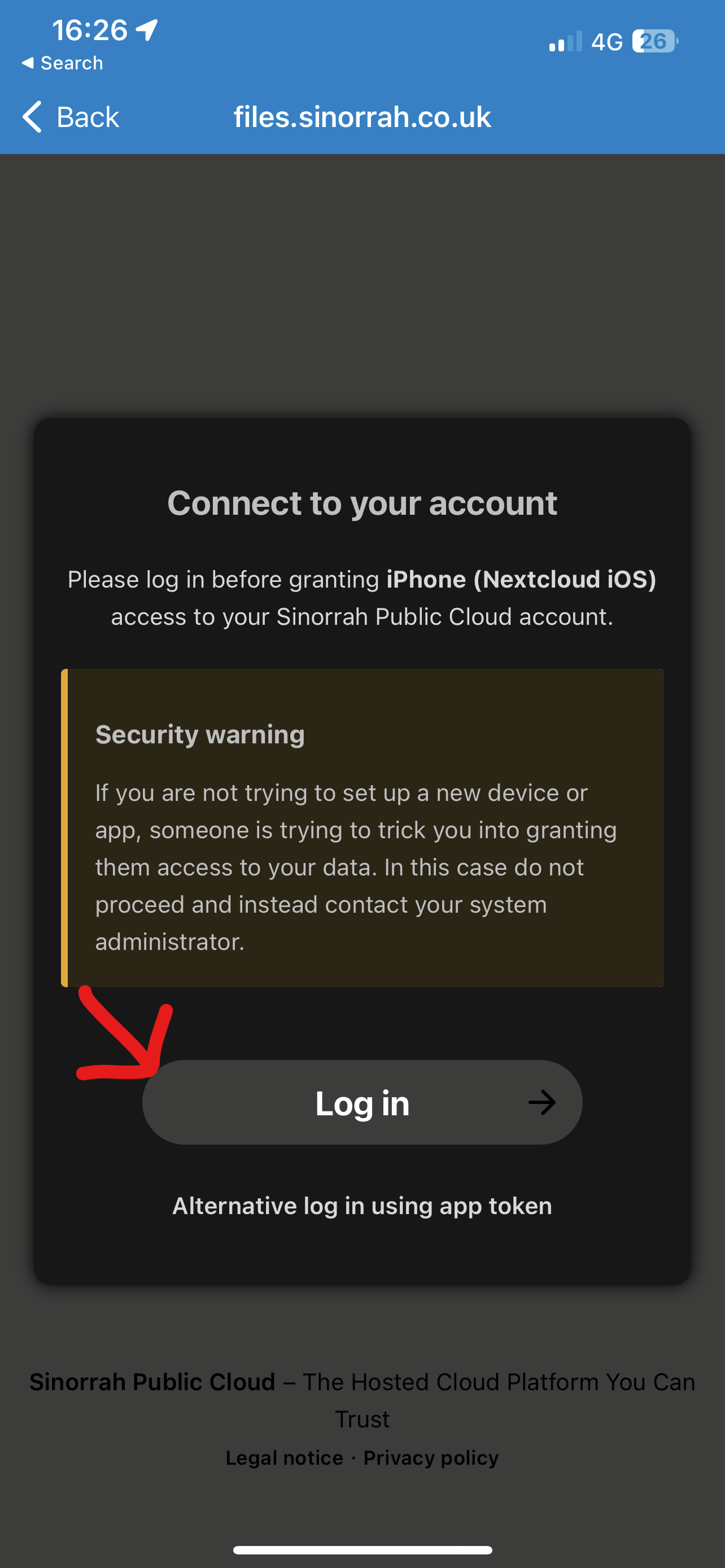
- Press Log In

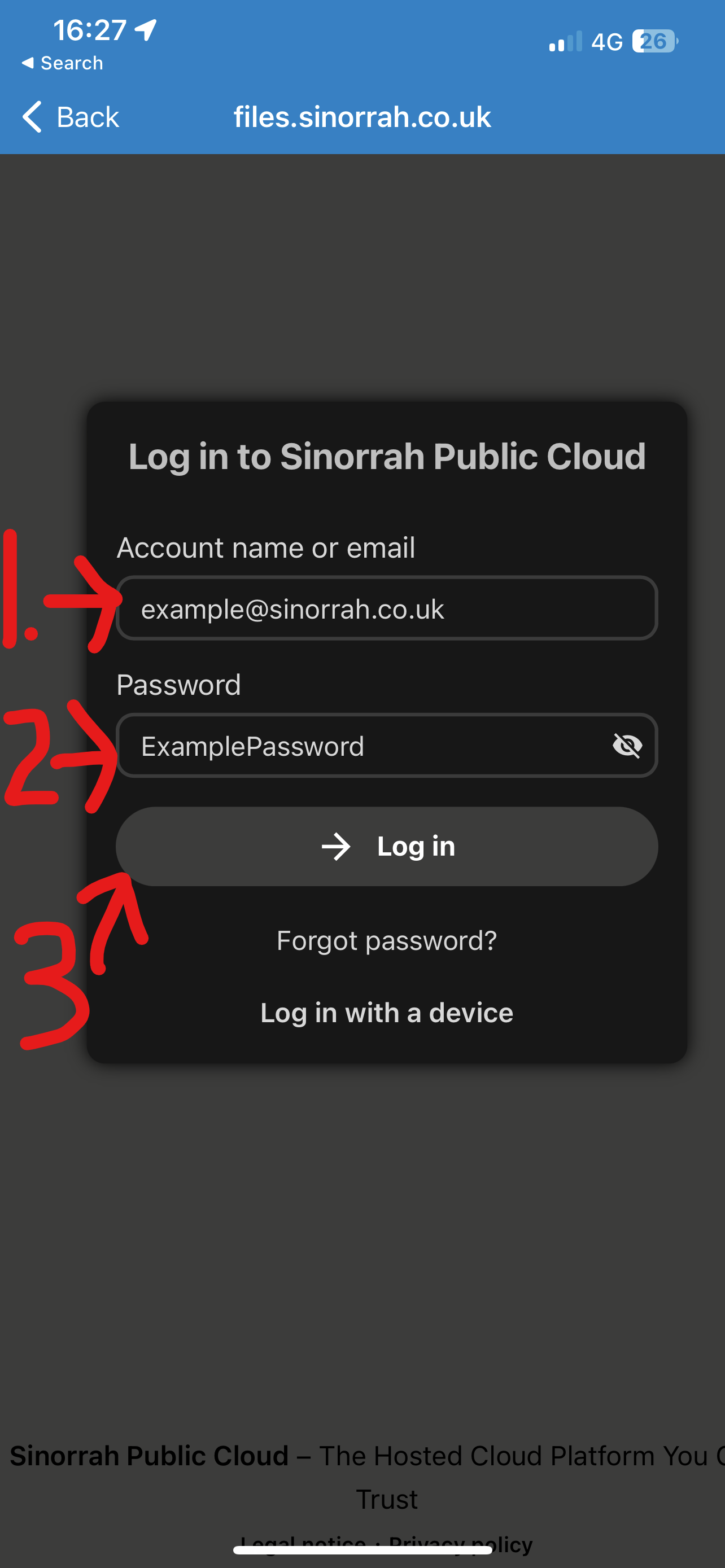
- Enter your email address in the "Account name or email" box, Enter your password in the "Password" box, then press "Log in"

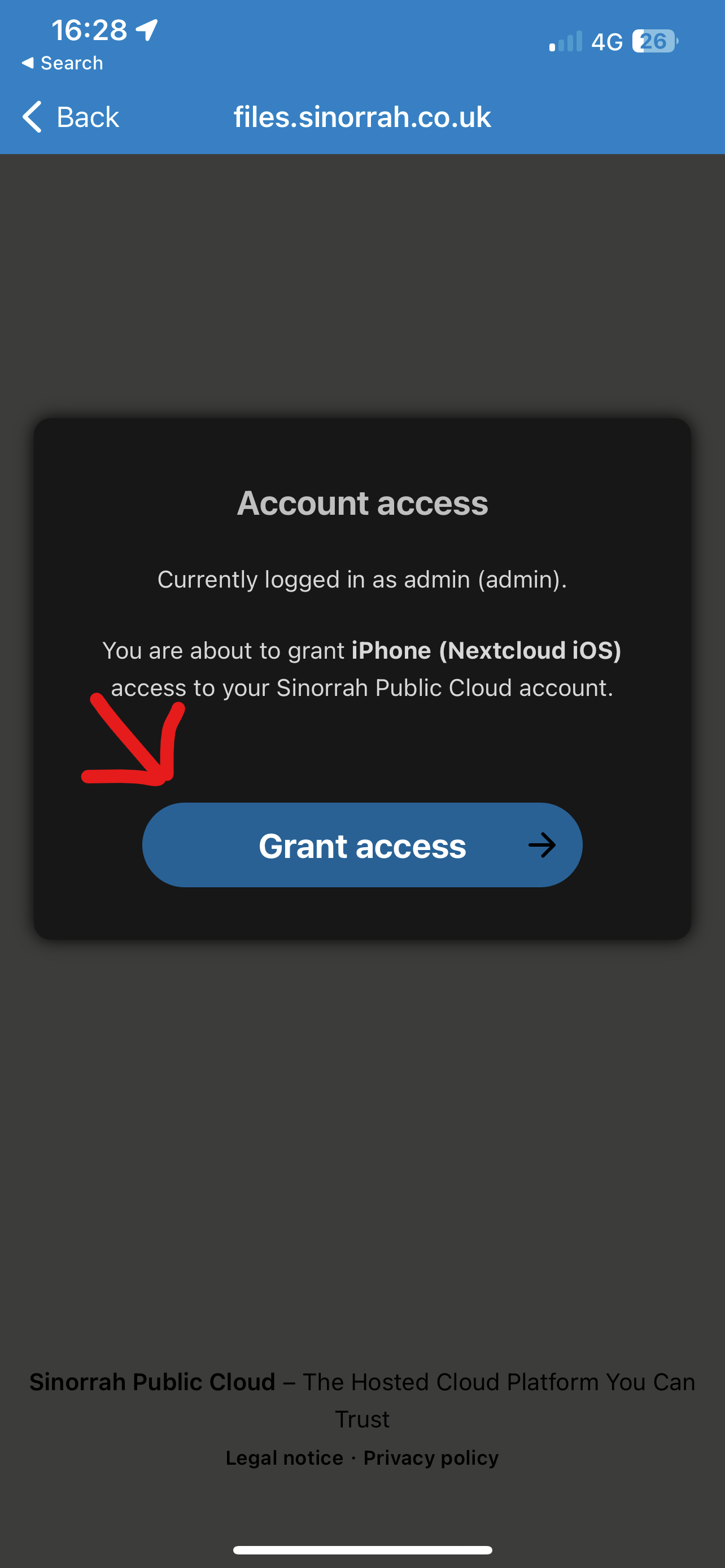
- Press Grant Access

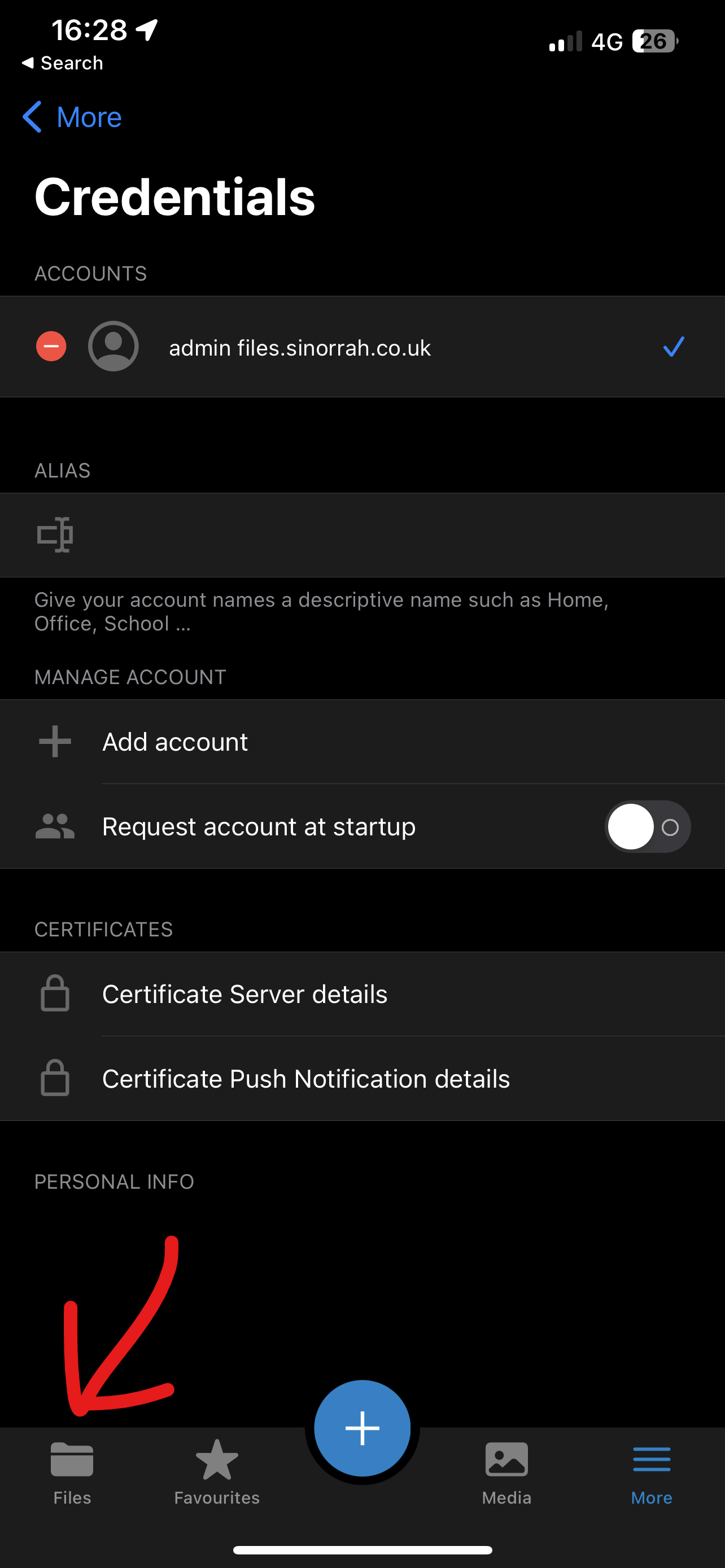
- You should now be logged in and ready to use Nextcloud, to view your files press the "Files" icon at the bottom of the screen

Install Nextcloud on Mac (macOS)
Install Nextcloud on Mac (macOS)
Installing Nextcloud on Mac (macOS)
- Go to Nextcloud.com
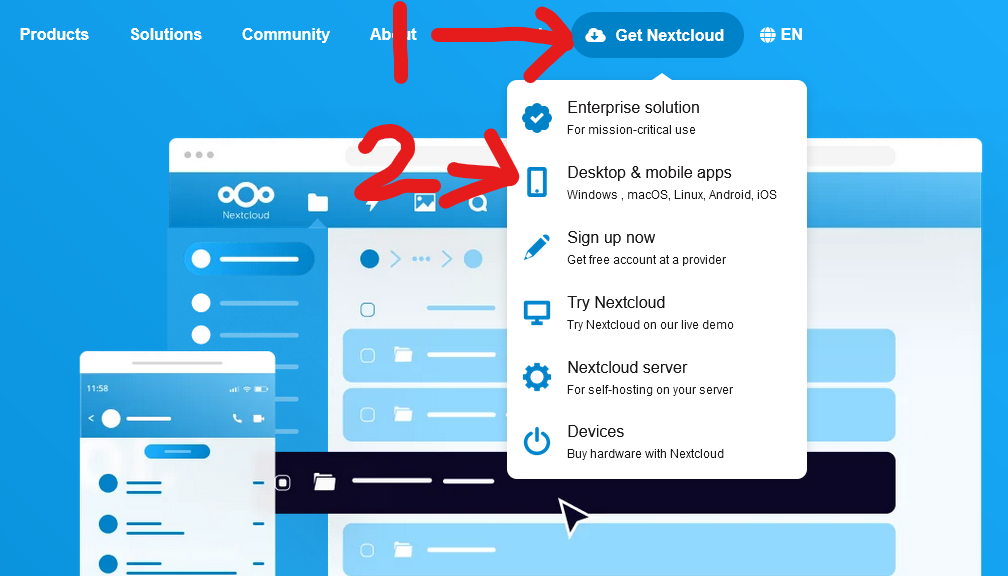
- Along the top of the page go to "Get Nextcloud", then click "Desktop & Mobile Apps"
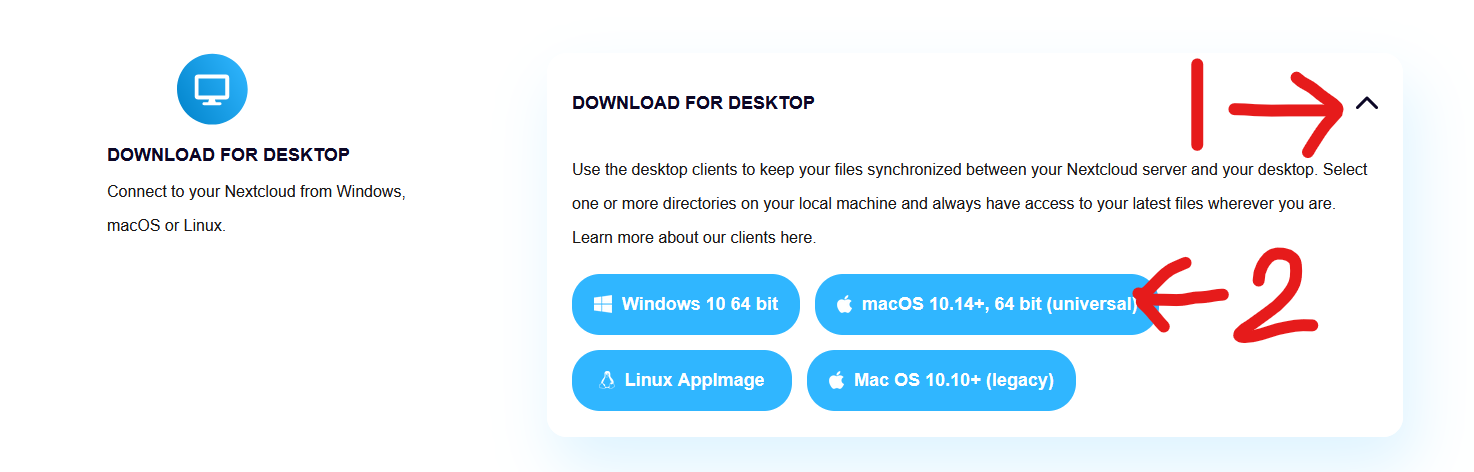
- Scroll down to "Download For Desktop", click the drop arrow, then click "macOS 10.14+, 64 bit"

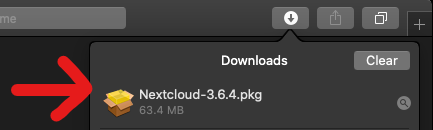
- A file should start downloading, once downloaded open the file.

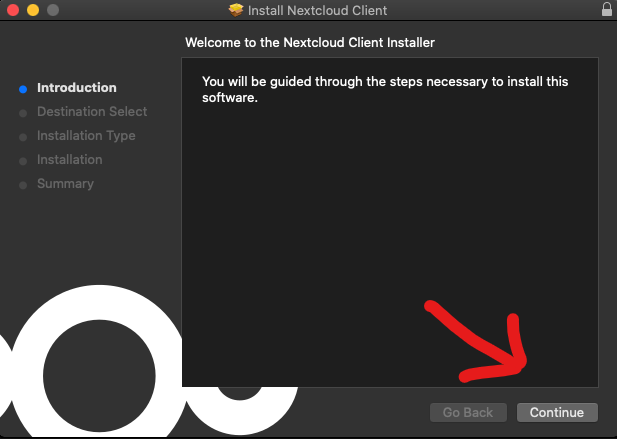
- You should be greeted by the Nextcloud installer, click continue

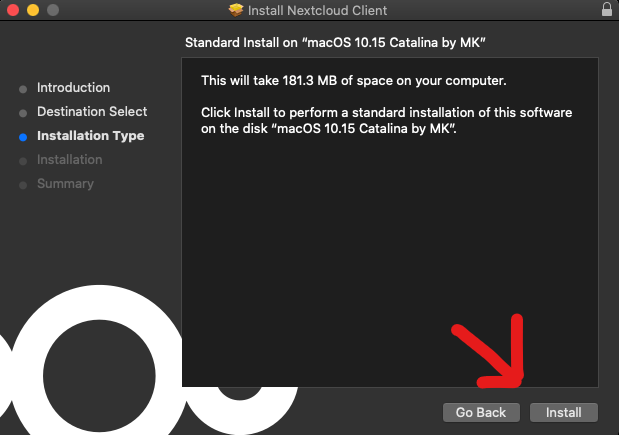
- Click Install

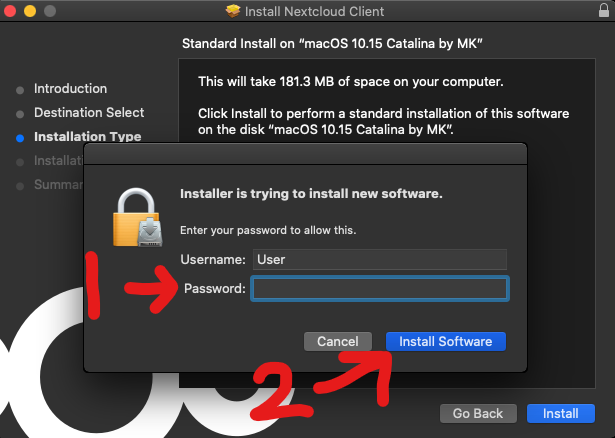
- A popup should appear asking for permission to install Nextcloud, please enter your device's password and click "Install Software"

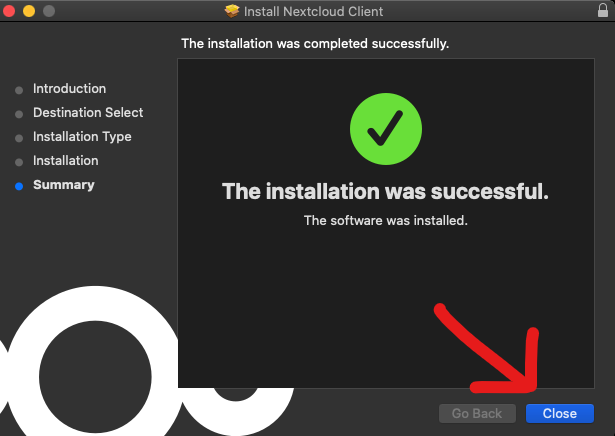
- Nextcloud should now be installed, click the "Close" button.

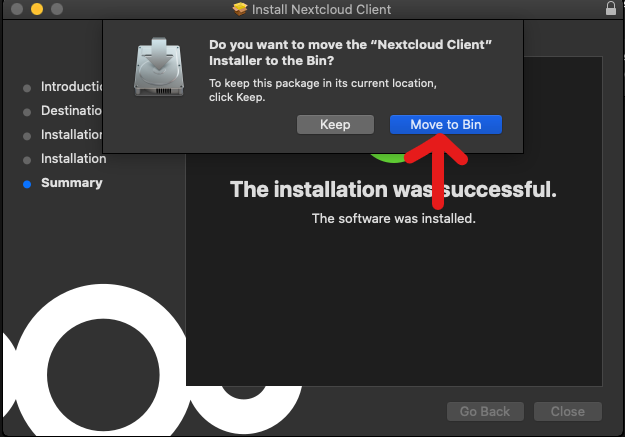
- A pop up should appear asking if you would like to move the Nextcloud installer to the bin, click "Move to Bin"

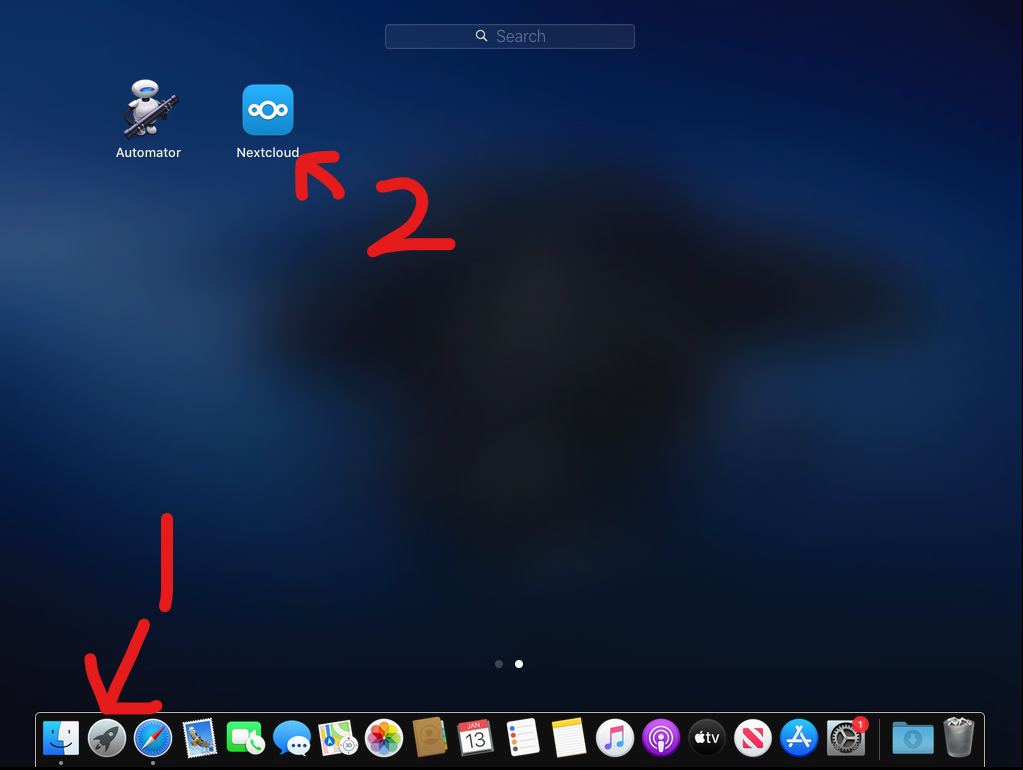
- Go to your programs and open "Nextcloud"

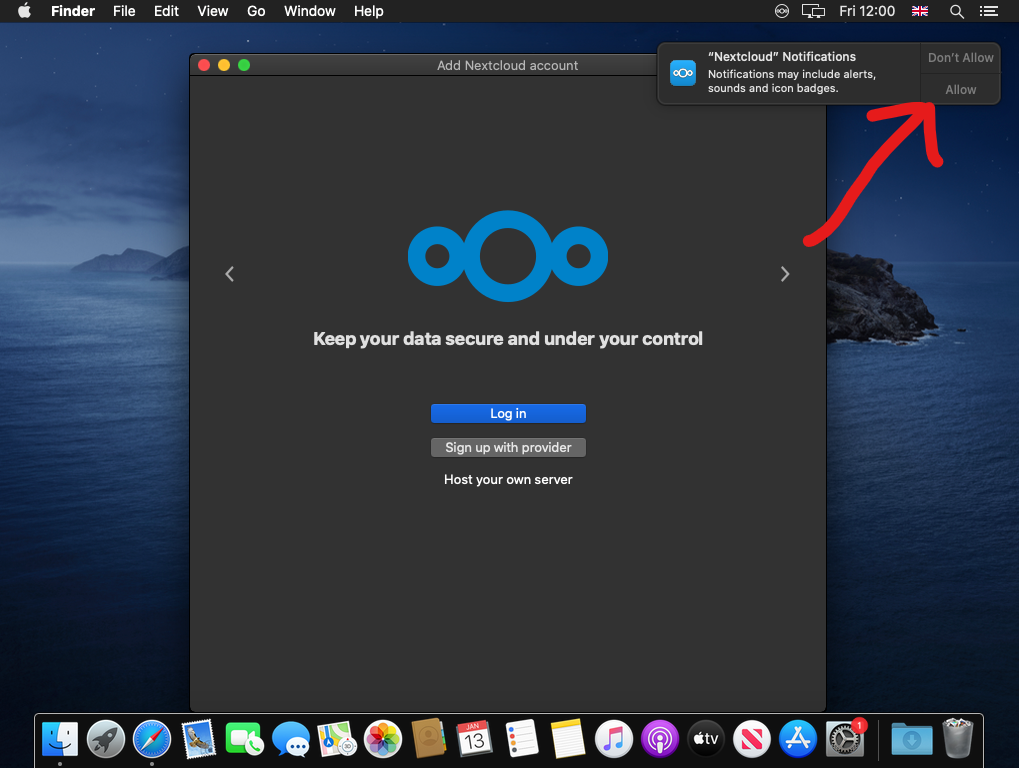
- Nextcloud should now open, a pop up in the corner should ask for permission for notifications, click allow

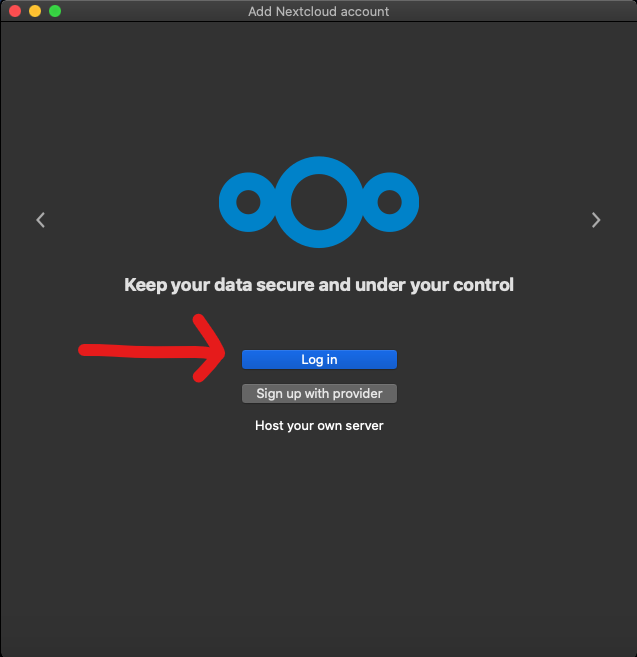
- Click "Log in"

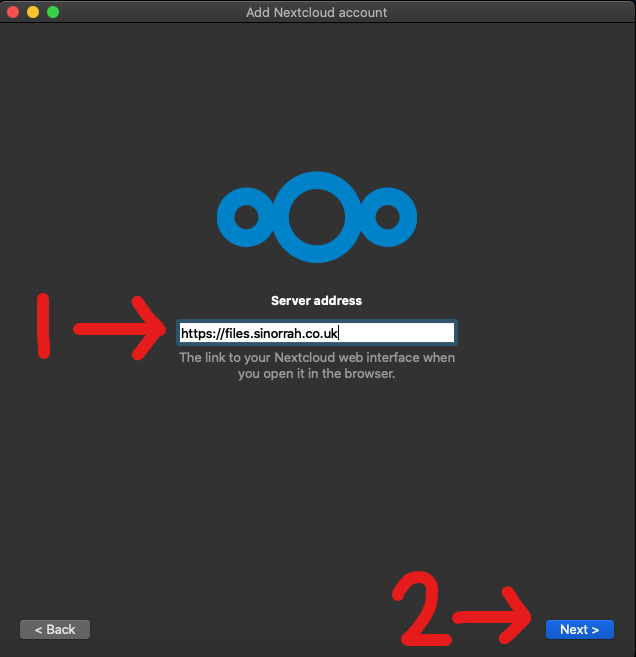
- In the "Server address" box, type in "https://files.sinorrah.co.uk", then click "Next"

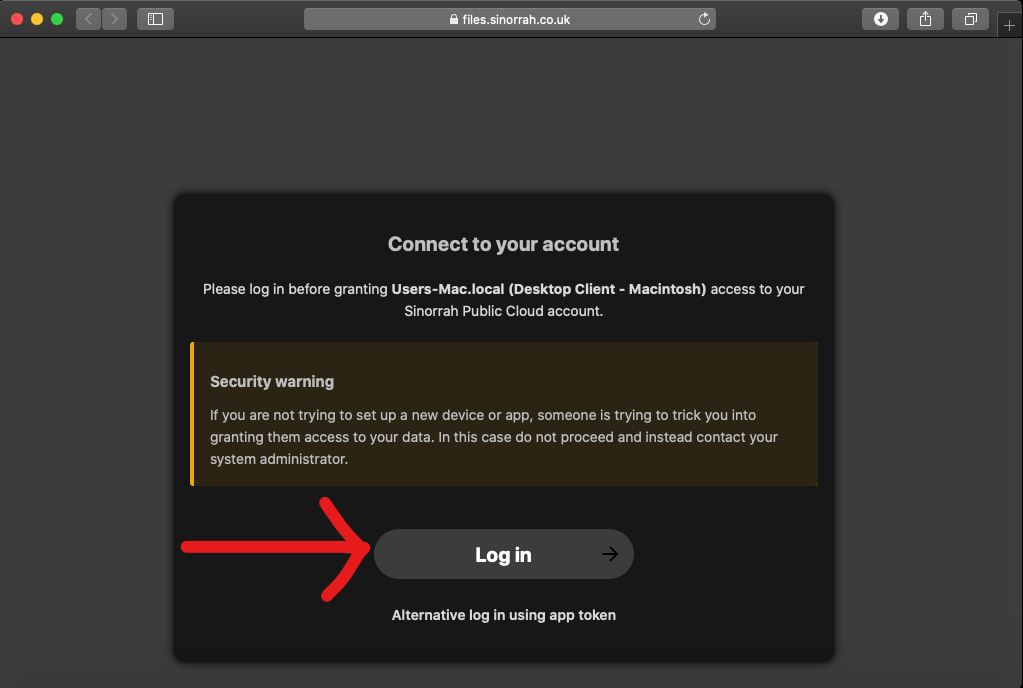
- A web browser should open asking you to "Connect to your account", click "Log in"

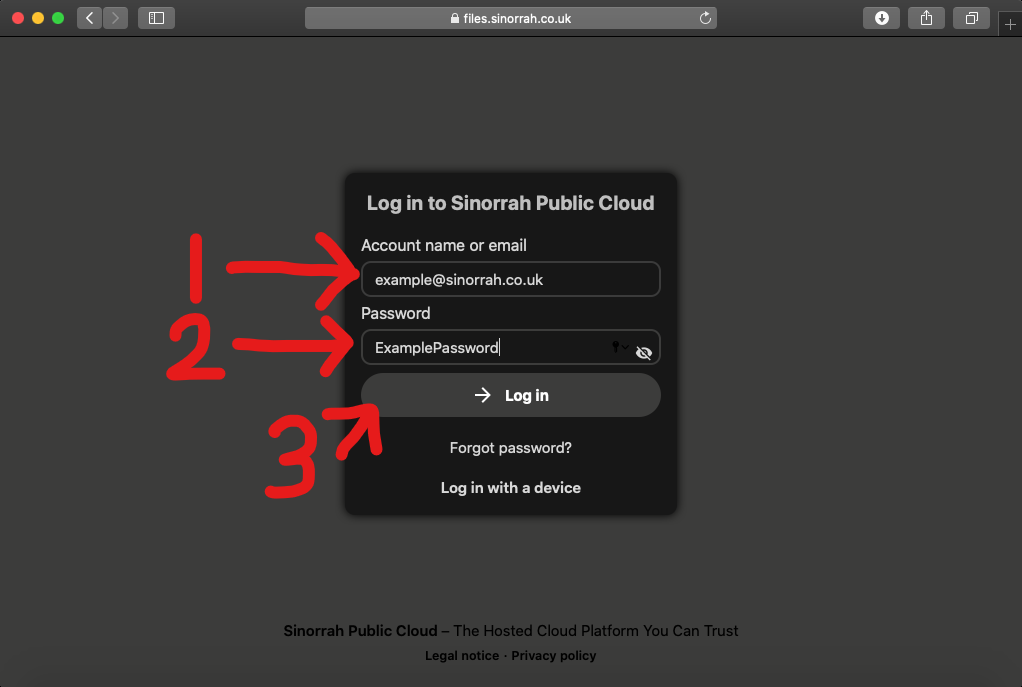
- You should now be greeted with a login page, please put your email in the "Account name or Email" box, then put your password in the "Password" box, then click "Log in"

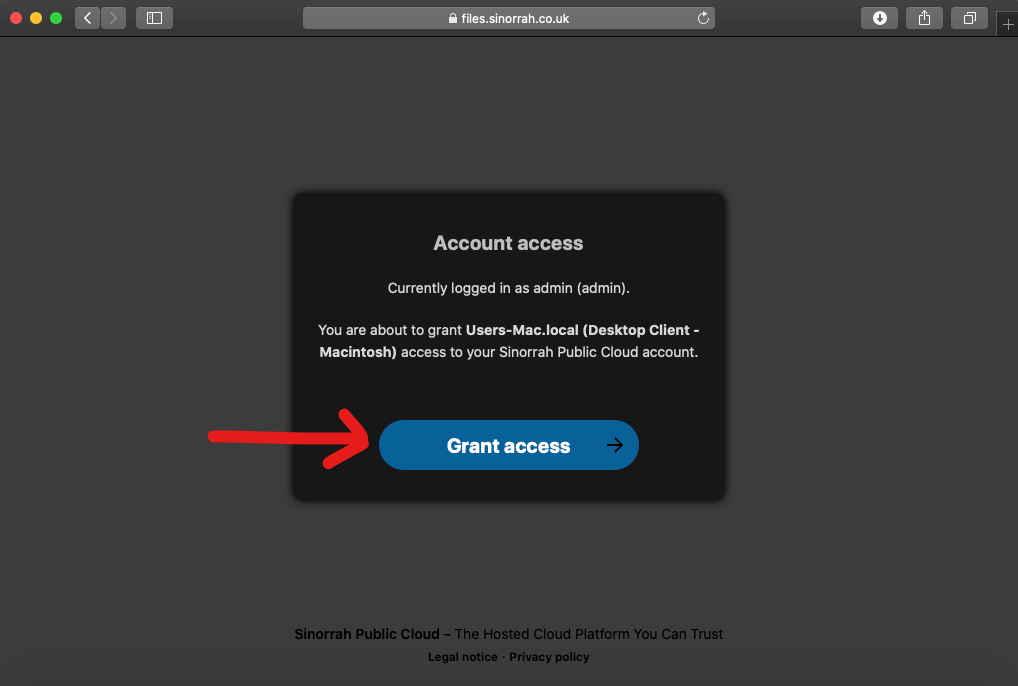
- If the account details are correct you should get to this screen, click "Grant Access"

- You should now see "Account connected", Nextcloud should reopen soon after
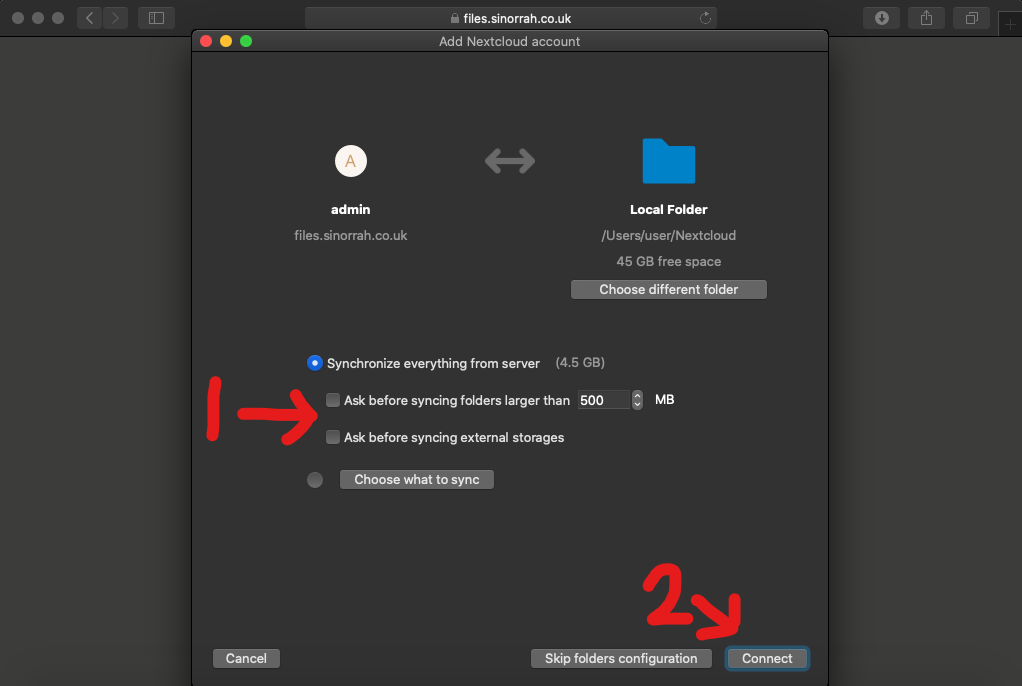
- Make sure both "Ask before Syncing" are unticked, then click "Connect"

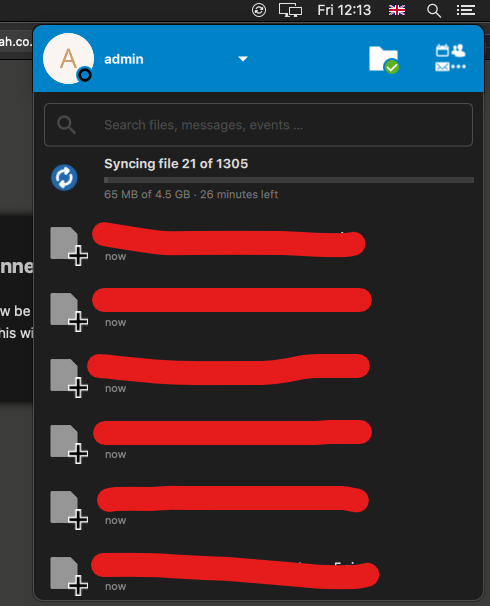
- If the Nextcloud install is successful, you should see Nextcloud pop up and start to sync your files.

Install Nextcloud on Mac (macOS)
Nextcloud Mac OS VFS Troubleshooting
Folders either empty or not syncing at all
- Remove
~/Library/Application Support/FileProvider/com.nextcloud etc(this is where the configuration files that tell macOS to mount its providers go - Nextcloud doesn't properly clean these up when you delete the connection). - Uninstall Nextcloud (unless you intend to re-establish some connections; if you don't uninstall it, the folder above will re-appear, albeit harmlessly with just some default entries).
- Restart your Mac (must be a restart, not a logout/in, or macOS won't let go enough for you to do the next step).
- Go to
~/Library/CloudStoragein the Finder. Delete the folders that start withNextcloud, I had to do a sudo rm -r -f to be able to do this, but this might not be needed
This will do a full reset on the VFS