Email Clients
- Set up a Microsoft 365 or Outlook.com email in the iOS Mail app
- Set up a Sinorrah Exchange email in the iOS Mail app
- Set up a Microsoft 365, Exchange, or Outlook.com email on Android (Spark)
- Setup Email on Windows (Outlook/Thunderbird)
- Set up a IMAP email in the iOS Mail app
Set up a Microsoft 365 or Outlook.com email in the iOS Mail app


Go to your iPhone or iPad's Settings > scroll down and tap Accounts & Passwords > Add Account.
Note: If you're on iOS 10, go to Mail > Accounts >Add Account.
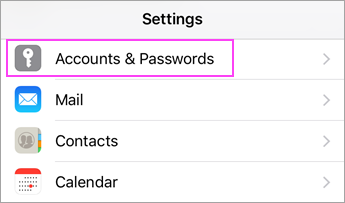
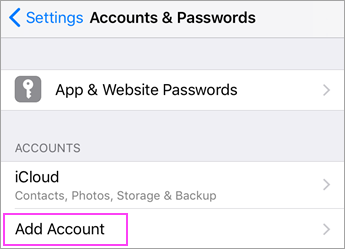

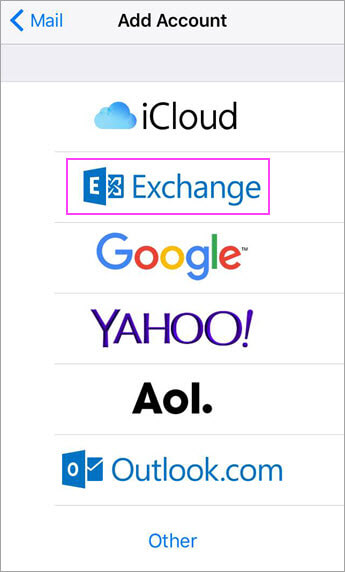
Select Exchange.

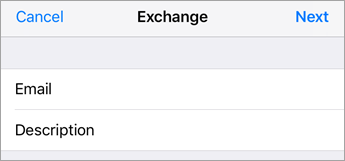
Enter your email into the email box. Tap Next.
Tap Sign In.
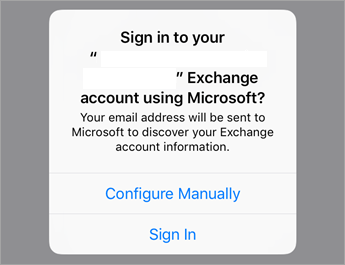

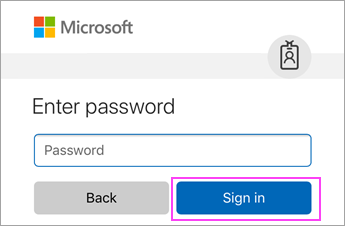
Enter the password associated with your email account. Tap Sign in or Next.

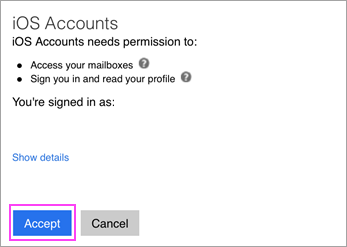
The Mail app may request certain permissions. Tap Accept.

Choose the services you want to sync with your iOS device and tap Save. You're done!

Set up a Sinorrah Exchange email in the iOS Mail app
Go to your iPhone or iPad's Settings > scroll down and tap Accounts & Passwords > Add Account.
Note: If you're on iOS 10 or above, go to Mail > Accounts >Add Account.
Select Exchange.
Enter your email into the email box. Tap Next.
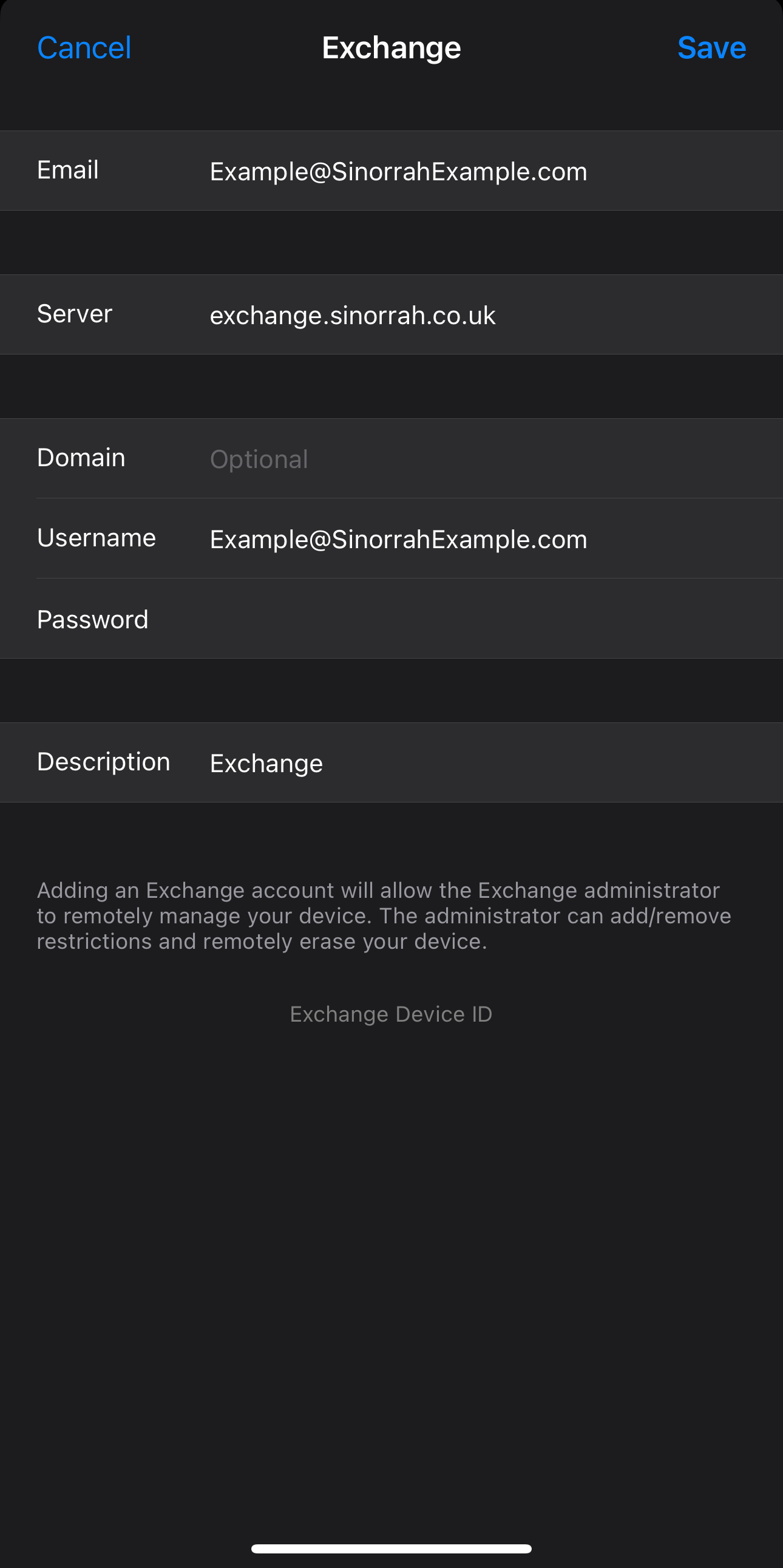
Tap Configure Manually.
Email: Your Email you are trying to add
Server: exchange.sinorrah.co.uk
Domain: Leave Blank
Username: Your Email you are trying to add
Password: Your Password for your email
Press Save
Choose the services you want to sync with your iOS device and tap Save. You're done!
Set up a Microsoft 365, Exchange, or Outlook.com email on Android (Spark)
Setup Email on Windows (Outlook/Thunderbird)
Outlook Guide

Thunderbird Guide
Set up a IMAP email in the iOS Mail app
1. Open Settings
2. Go to Mail
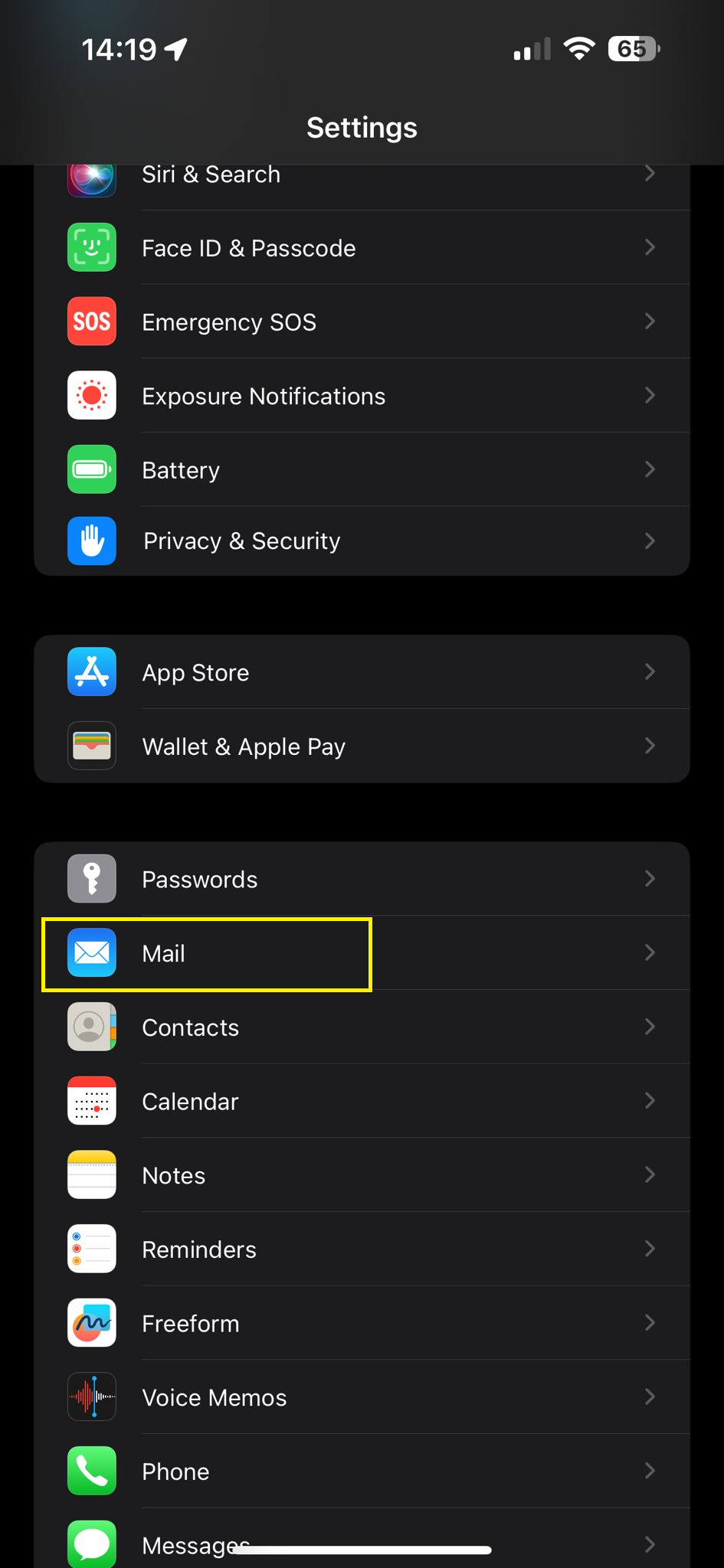
3. Go to Accounts
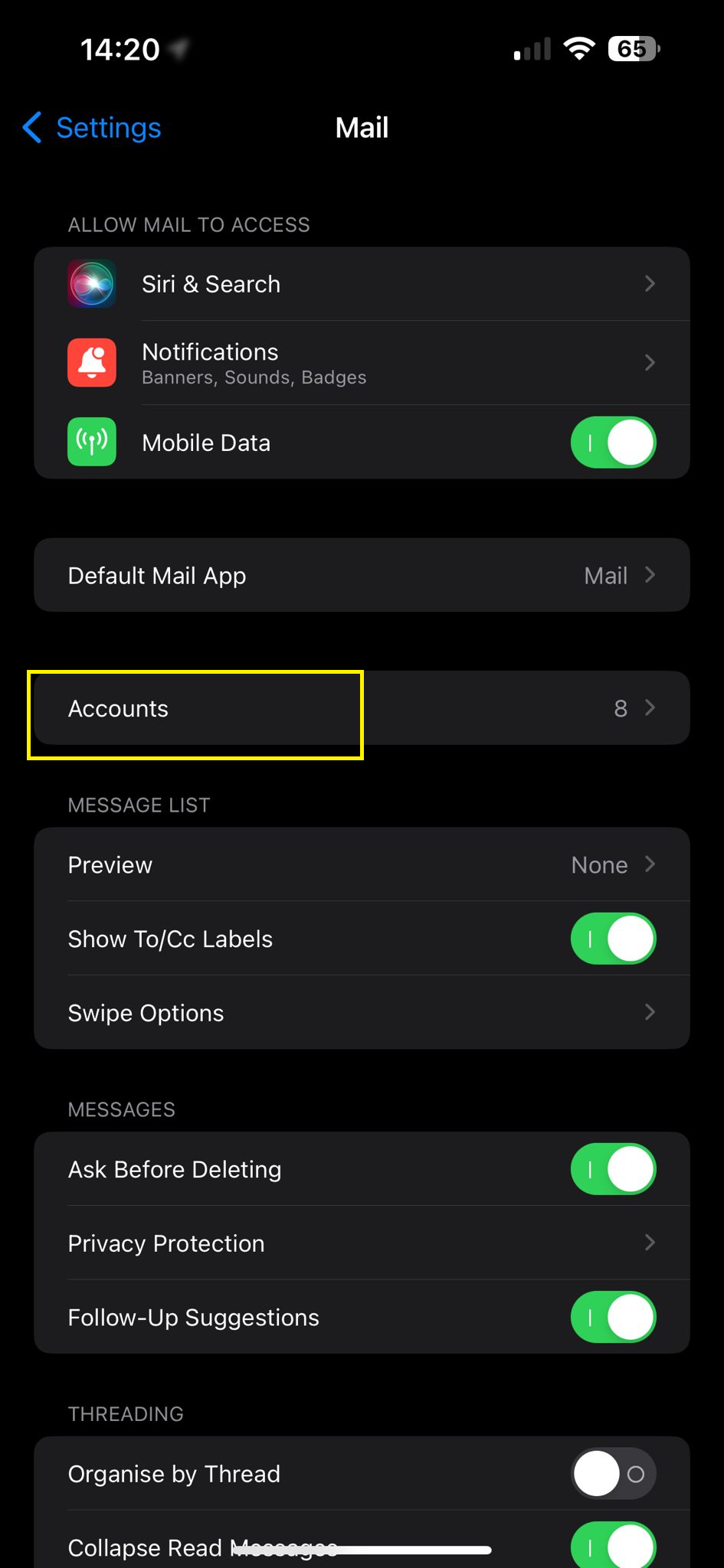
4. Add Account
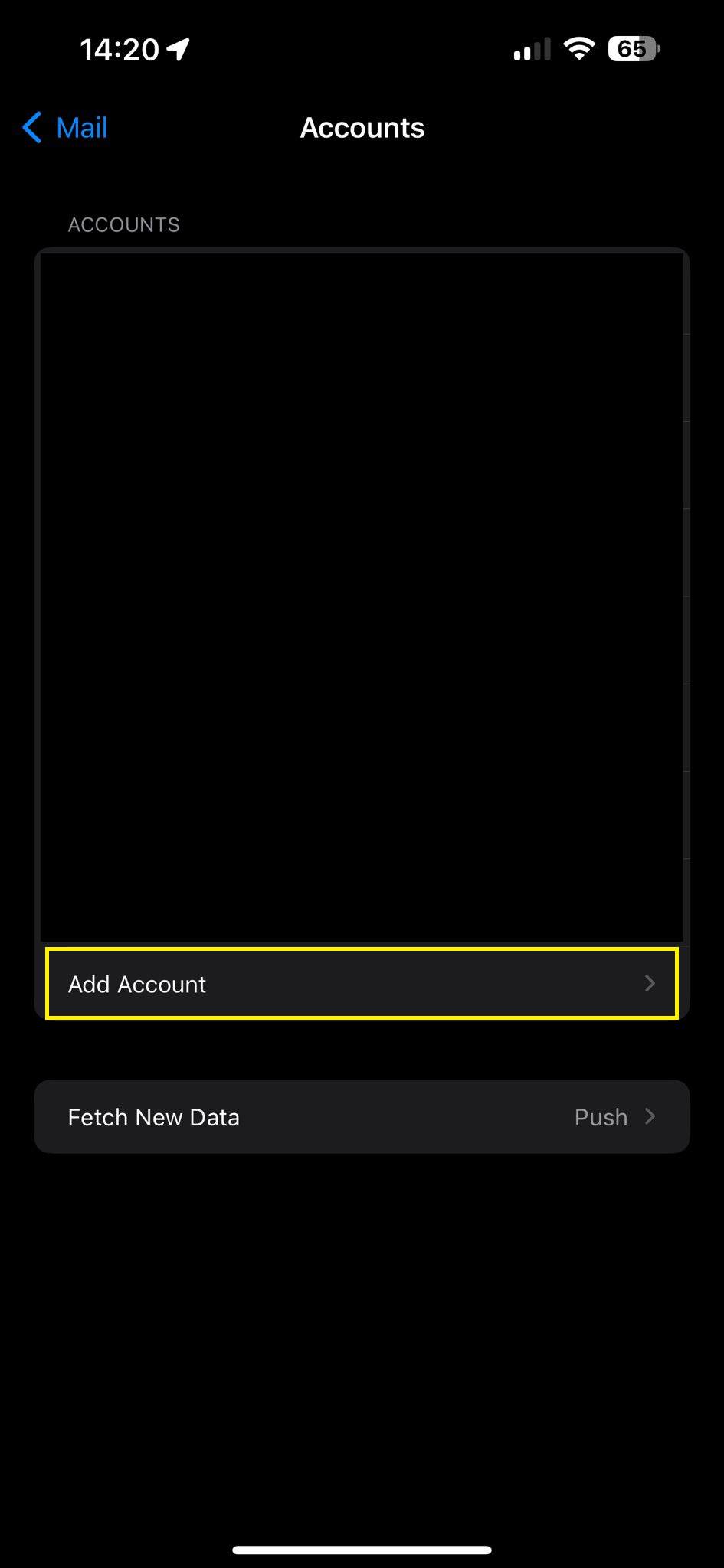
5. Select Other
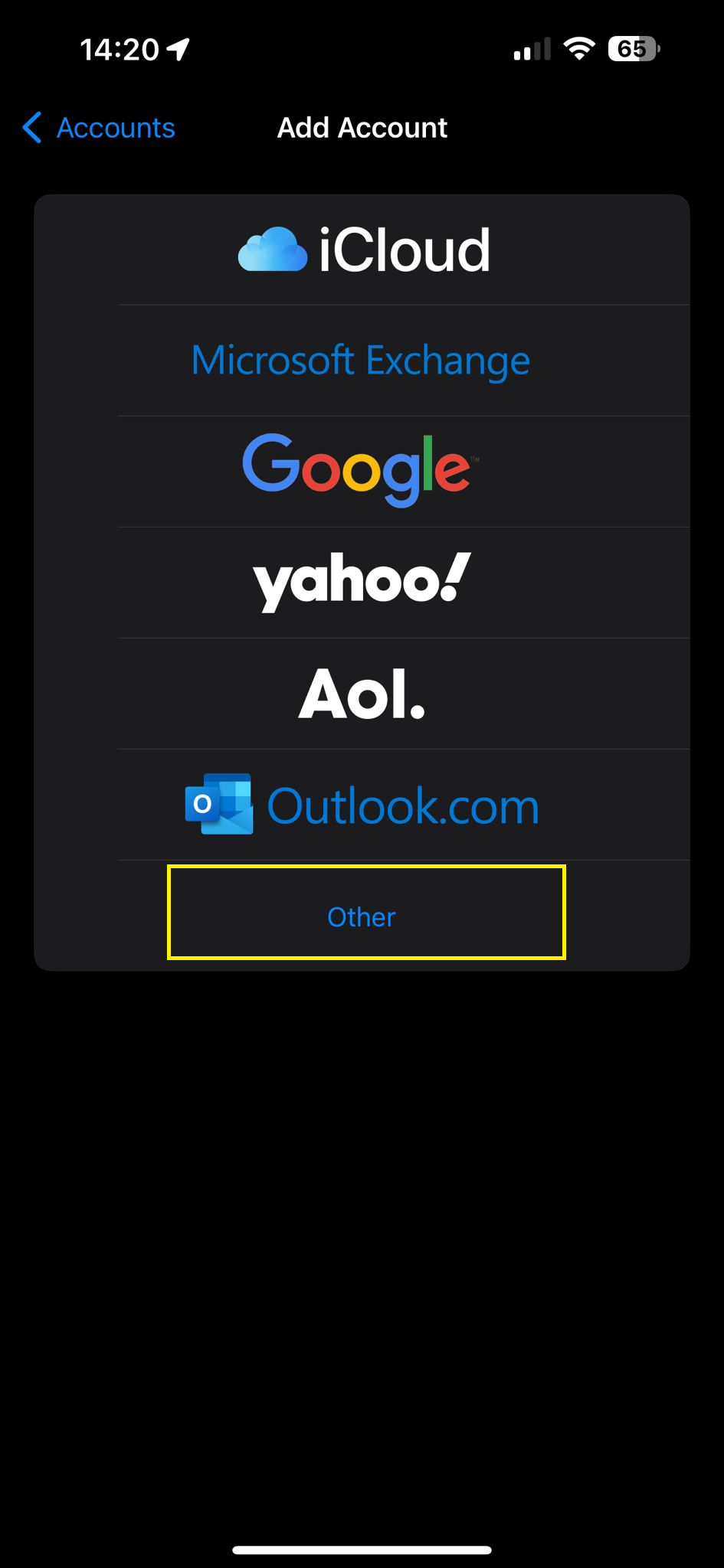
6. Add Mail Account
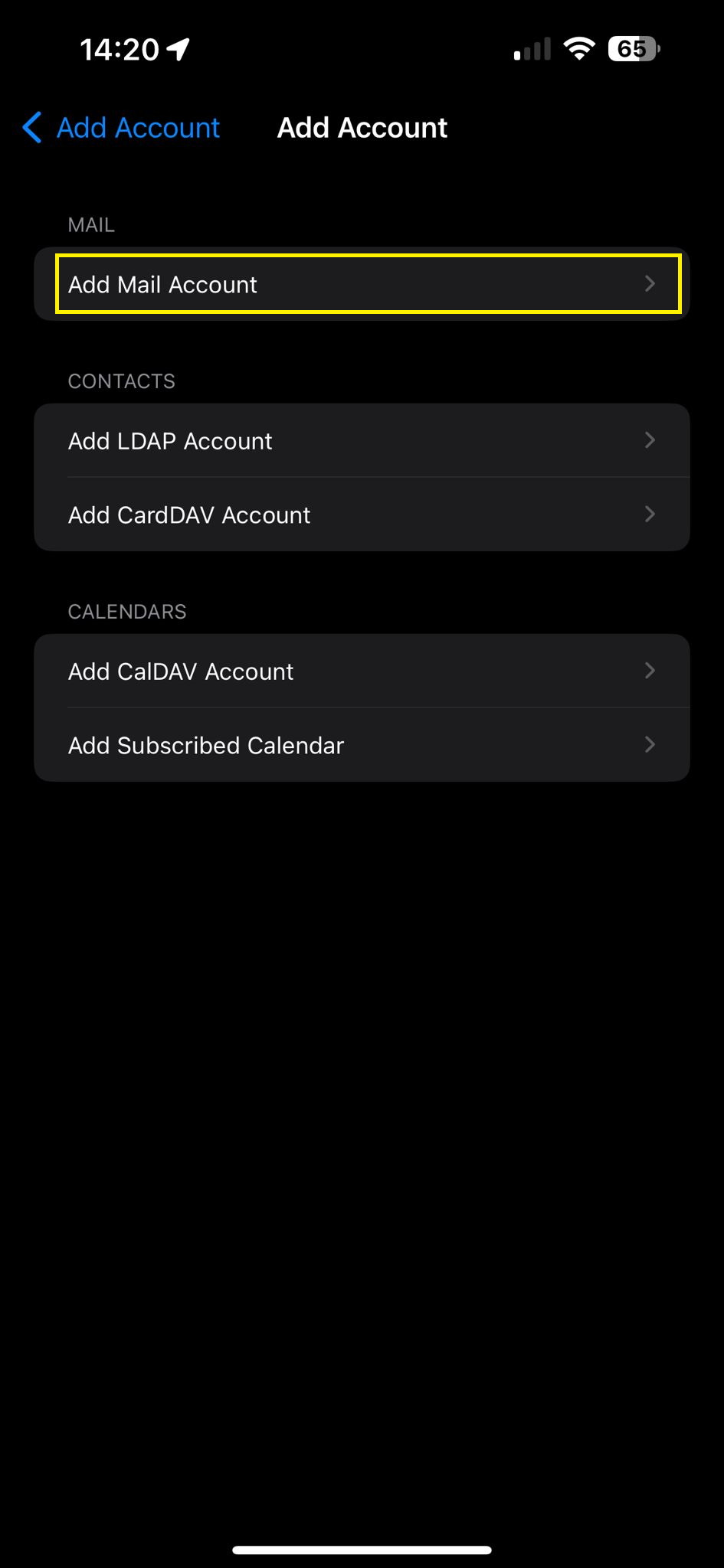
7. Fill out the details below:
Name: Can be anything
Email: Your Email
Password: Your Password
Description: Can be anything
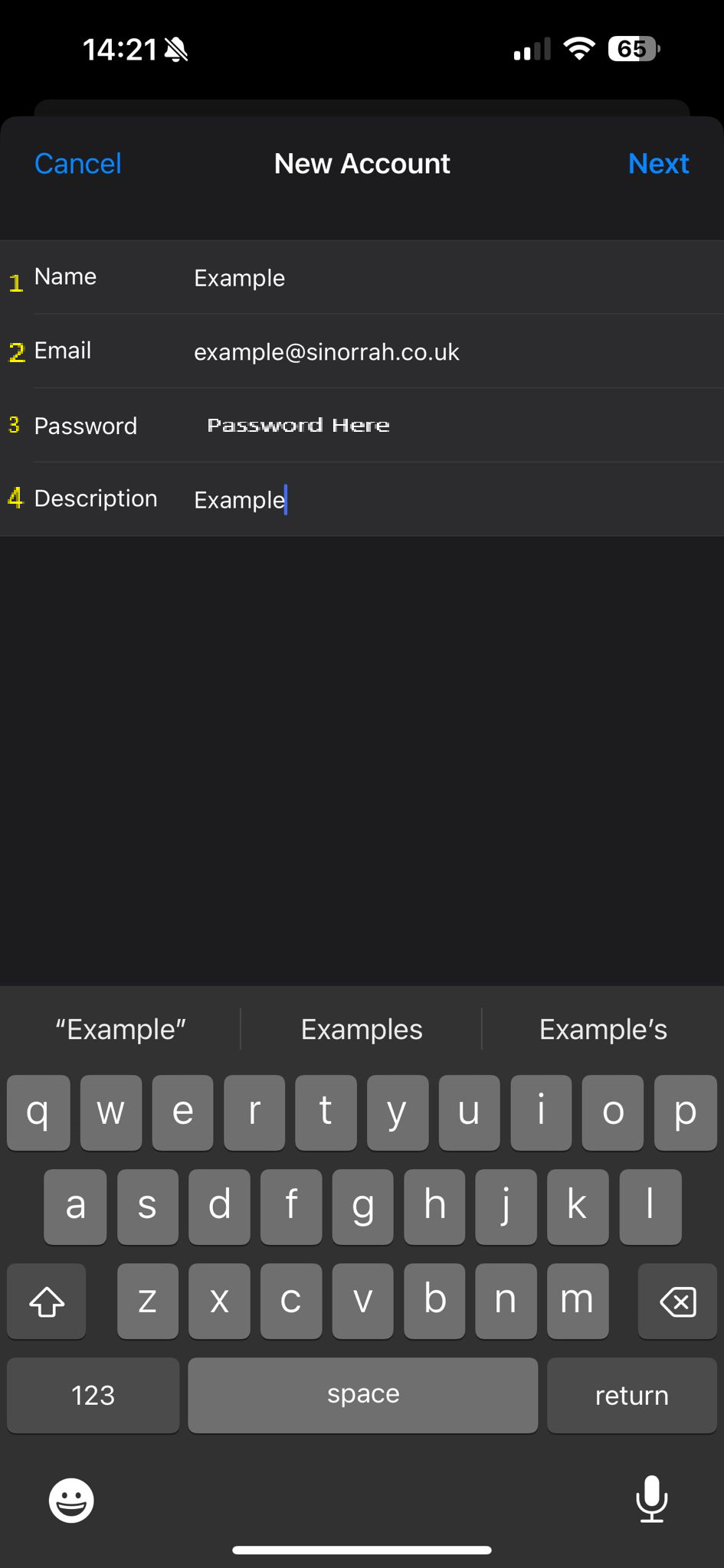
Press Next
8. Fill out the details below
Name: Can be anything
Email: Your Email
Description: Can be anything
INCOMING MAIL SERVER
Host Name: mail.sinorrah.co.uk
Username: Your Email
Password: Your Password
OUTGOING MAIL SERVER
Host Name: mail.sinorrah.co.uk
Username: Your Email
Password: Your Password
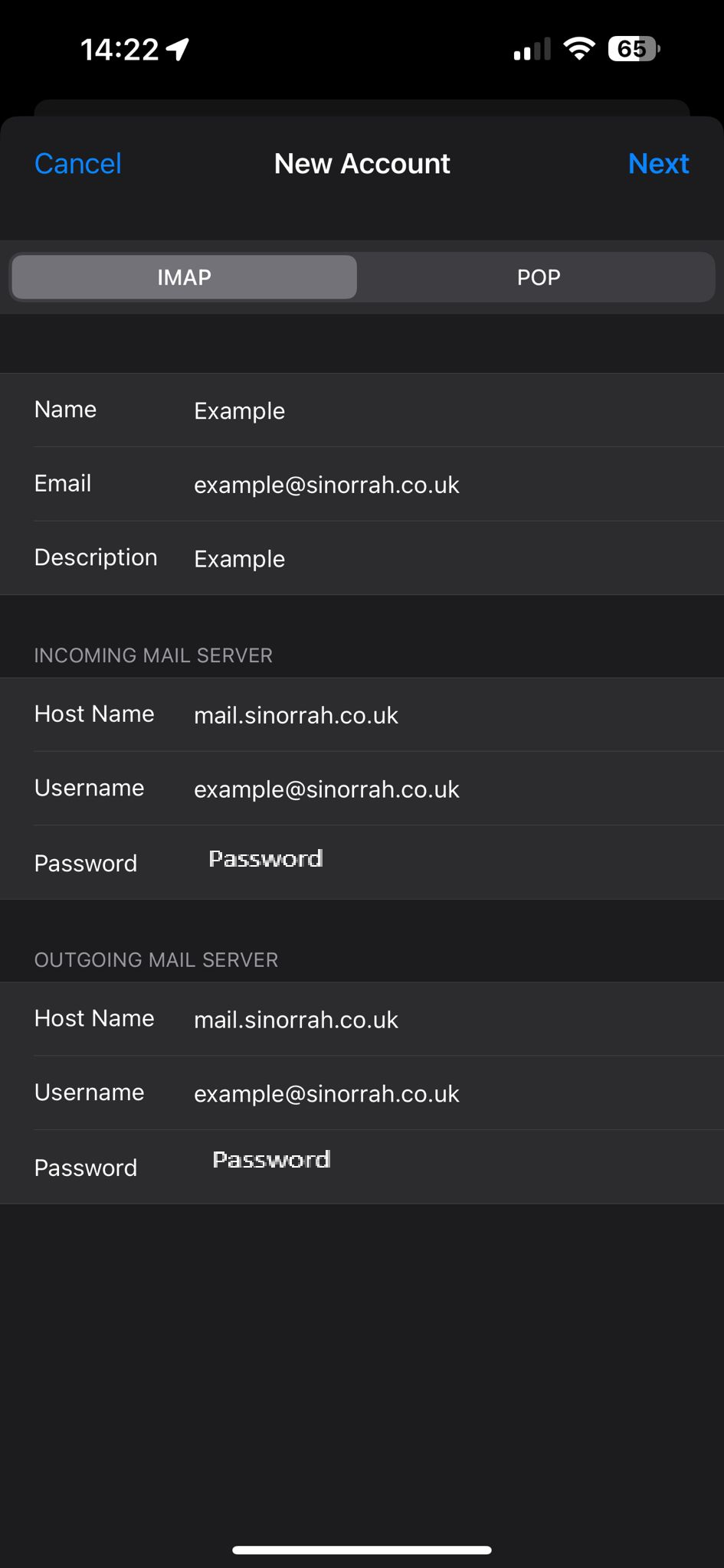
Press Next
9. If the details are correct, you can pick which items you want to sync (mail, calendar etc), the defaults are normally fine so just press next
10. Email has now been added